Purpose of documentation
The purpose of this document is to provide information regarding the APIs implemented. The guide also contains information regarding how to test the APIs.
Getting Started
Sign up
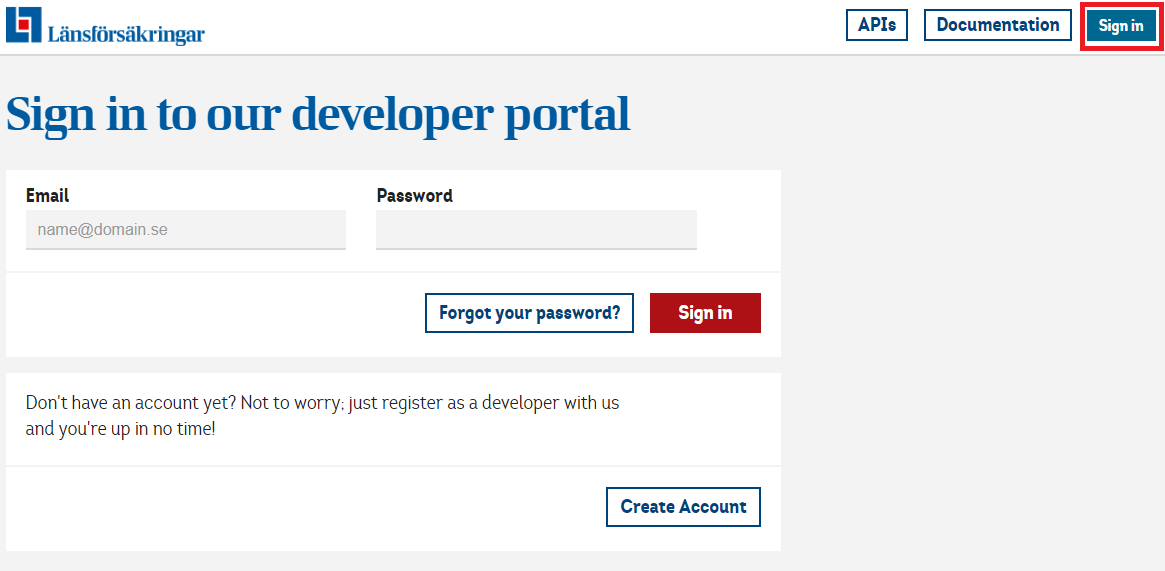
The first thing you need to do is to create an account and then sign in. You need to have an account to test the integration of Länsförsäkringar’s APIs in your applications.
Create an App
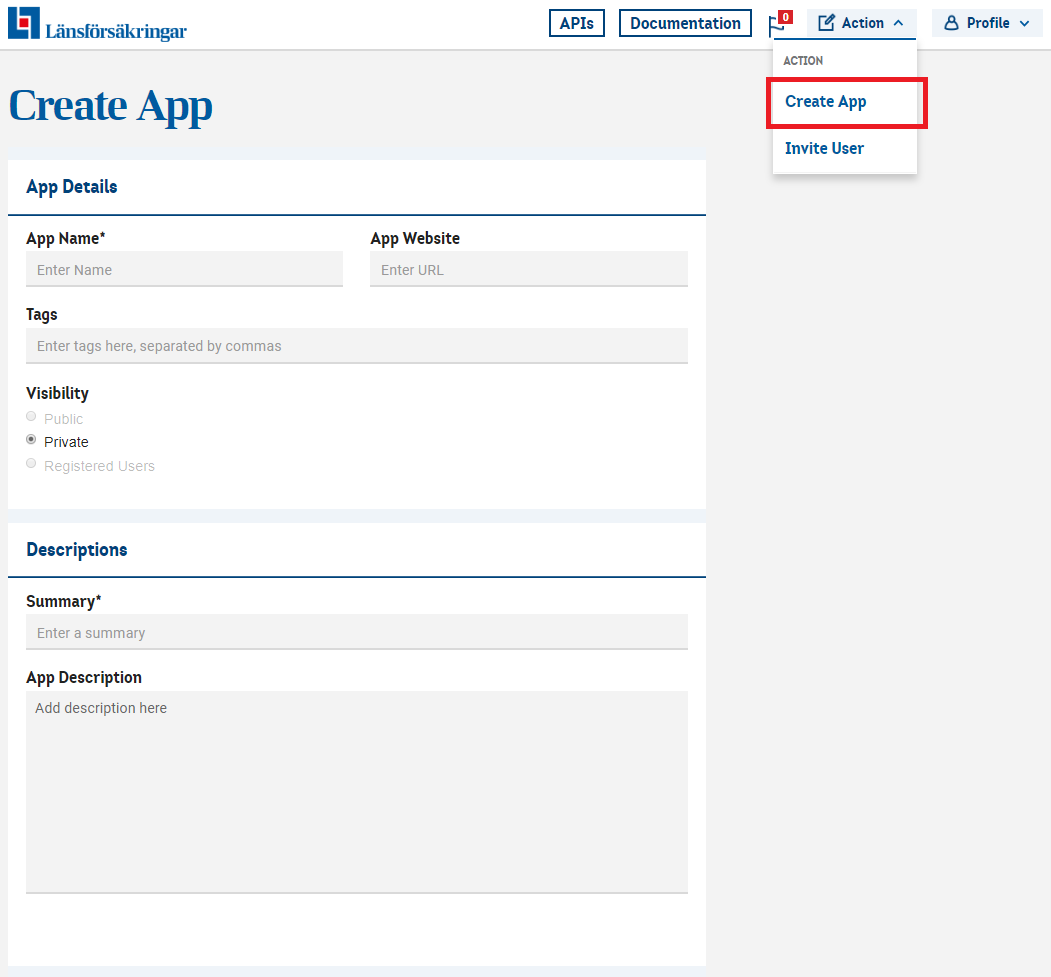
Once you are logged in, the next step is to create and configure your Apps. The Apps keep track of your credentials for using our APIs. For each App and each version of an App, a Client ID and a Client Secret will be created.
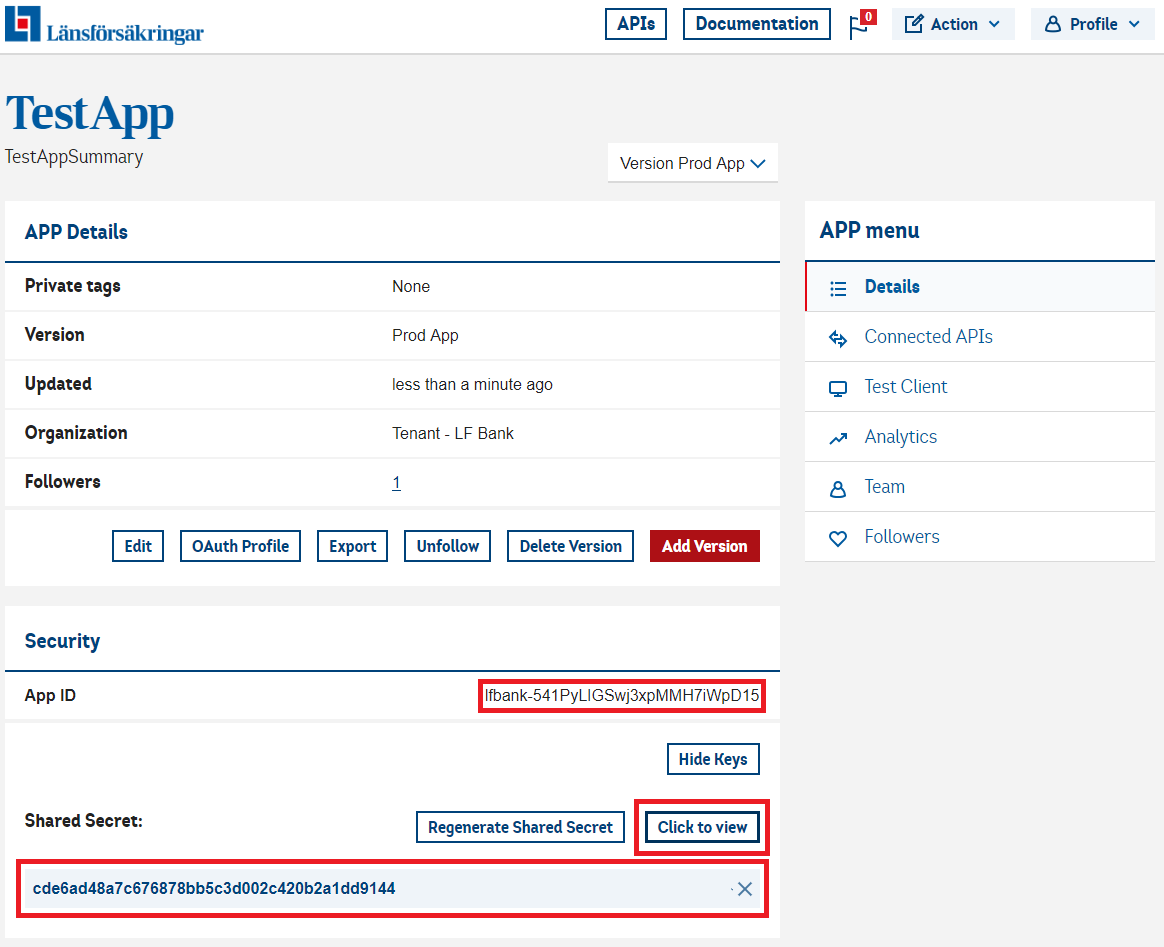
When your app has been created, you will see your Client ID/App ID and Shared Secret. Copy it and place it for safe keeping.
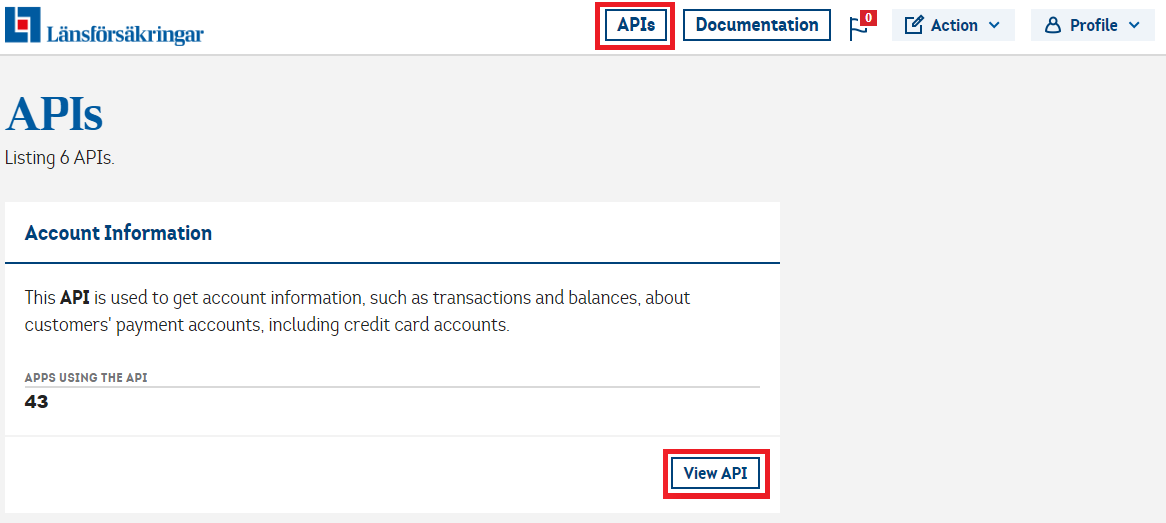
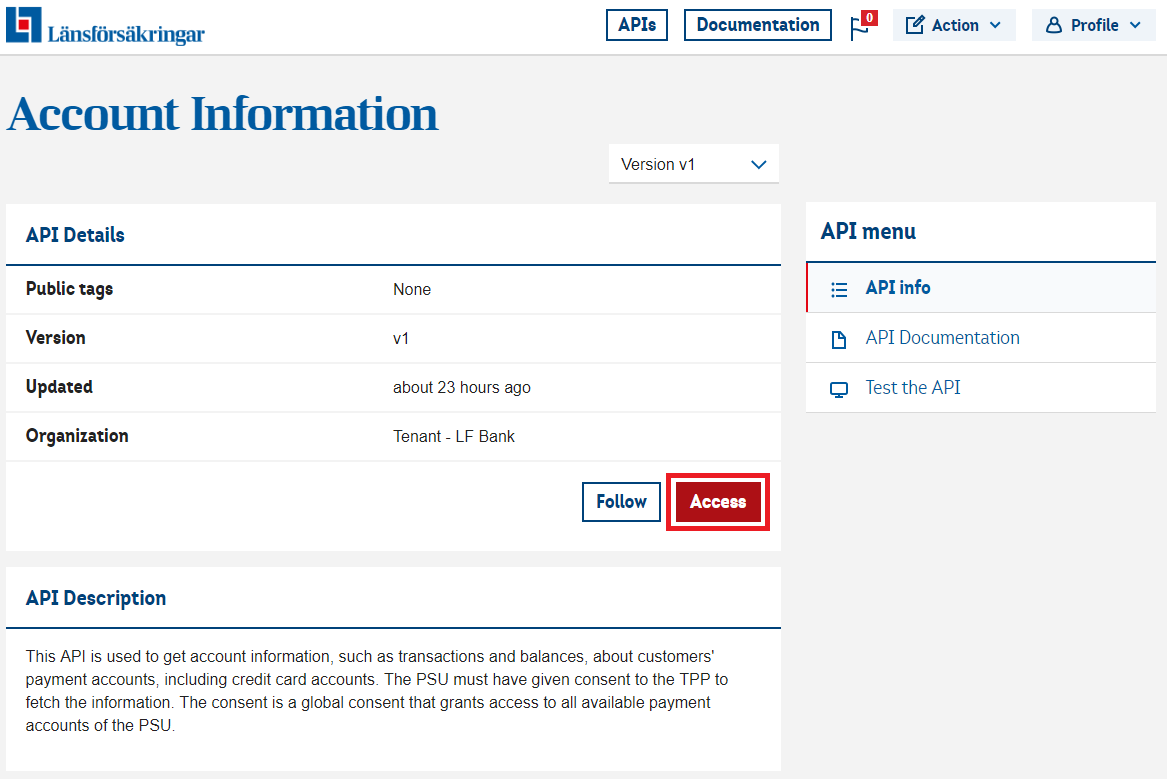
After your App is created, to be able to test an API, the App needs to gain access. Click on APIs, select an API, click on Access, select the version of the app that you want the access for, click on the radio button under ADD, click on Next and then click on Save.
Testing using Test Client
It is possible to test the APIs by using the Test Client in the Developer Portal. The Test Client can be found by navigating to your app.
- Click on Test Client under the App menu and select which version of the app to use.
- Select the API and operation.
- Add information in Headers and Parameters. (Since the Test Client is using an internal OAuth server for testing, the header Authorization does not need to be set and can be removed.)
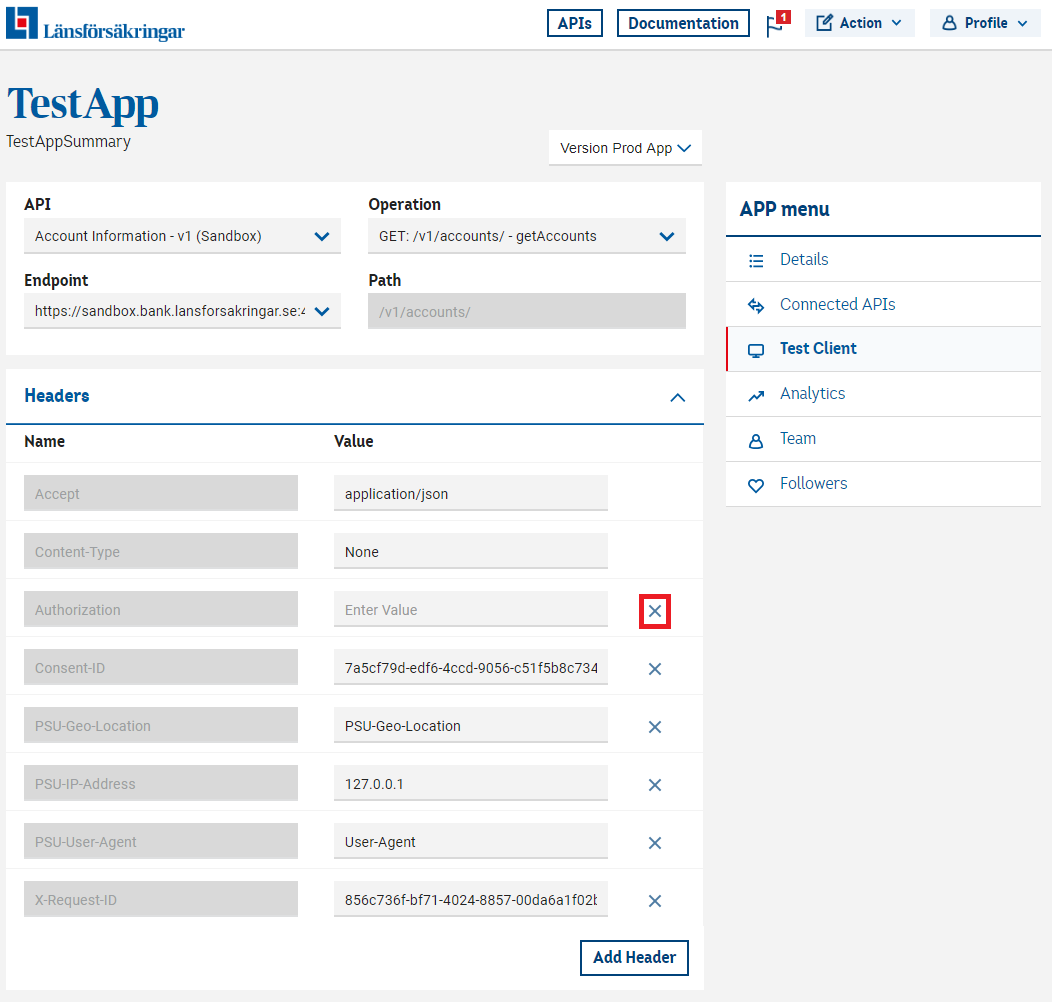
-
Click on Setup and then press save.
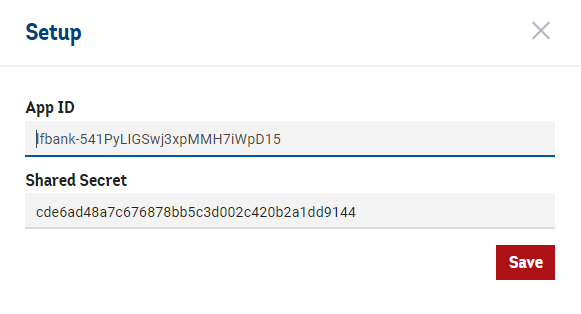
-
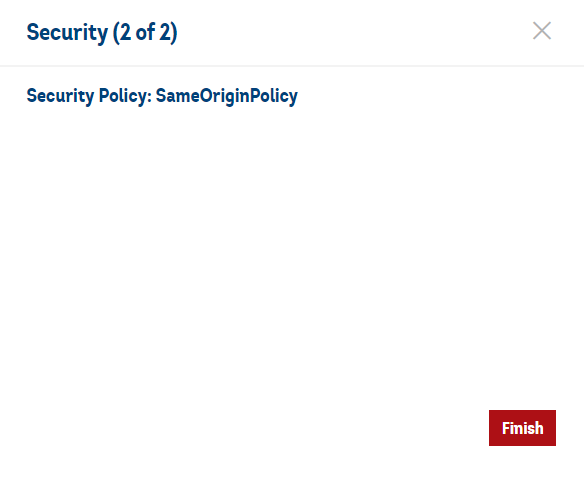
Click on Security, press on Get Token and then Next.
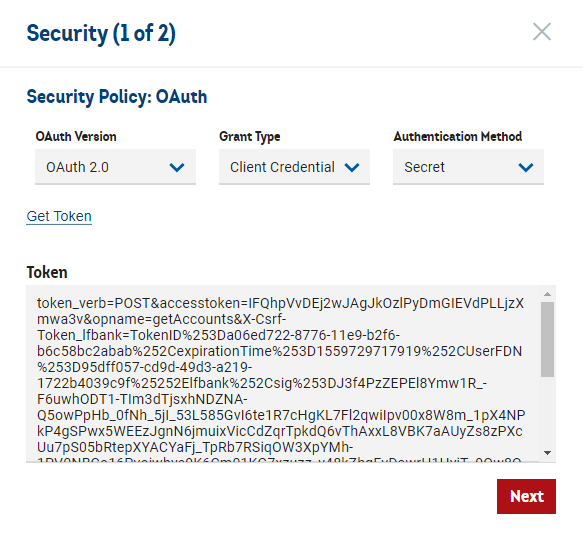
-
Click on Finish.
-
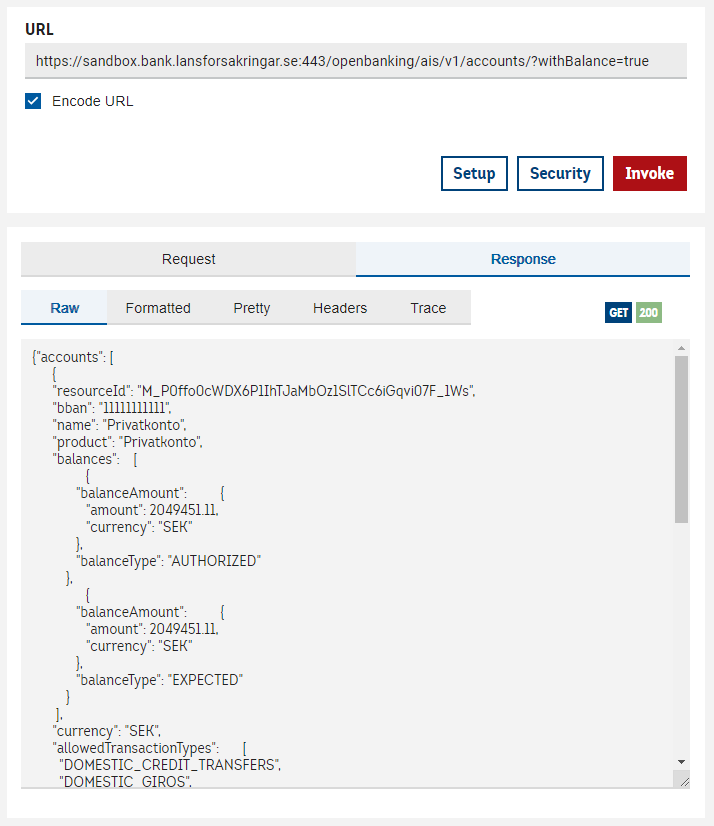
Click on Invoke.
Test using postman
Postman is a great tool to use when testing Länsförsäkringar APIs.
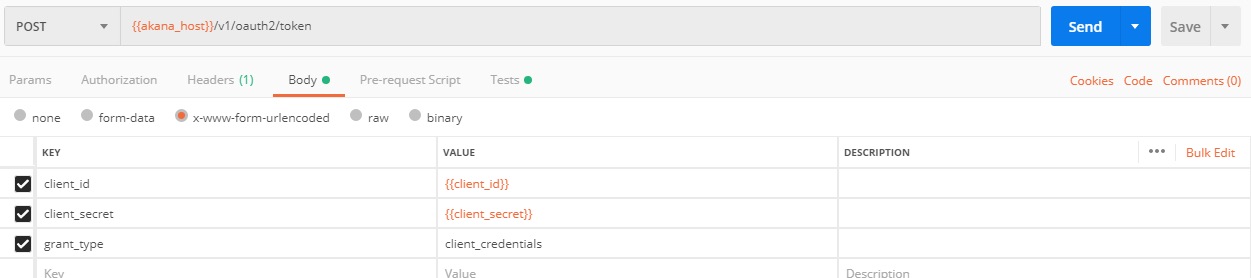
You can call the OAuth2 service in Postman to create an access token. This is needed when testing the APIs.
| client_id: | [APP ID for your App] |
|---|---|
| client_secret: | [Shared Secret for your App] |
| grant_type: | client_credentials |
The URLs for the APIs can be found in Developer Portal when navigating to the APIs.
Onboarding
In order to use the live endpoints of the API you will need to enroll through the process described at https://www.lansforsakringar.se/openbanking/
Both the live and sandbox certificate API requires the caller to authenticate with a valid eIDAS web authentication certificate issued by a QTSP.
Sandbox
The Sandbox consists of static mocked data.
The Account Information API, Payment Initiation API, Confirmations of Funds API, Consent API, Consent Anonymous API and OAuth API are implemented in the Sandbox.
Testing the APIs
The APIs can be tested through the Test Client in the Developer Portal or by reaching the endpoints from other apps or testing tools.
If using the Test Client in the Developer Portal, you start by creating an App and connecting the App to the APIs you want to test. In the Test Client, you select the API and the operation/service you want to test and add the necessary input (i.e. headers and parameters etc.).
For each request to execute a service (except the Consent Anonymous API), you need to include an authorization token. The token can be created in the Test Client, either by executing the OAuth API or by setting up the Authorization each time another service is executed. See paragraph Create an access token with OAuth API.
Sandbox Certificate
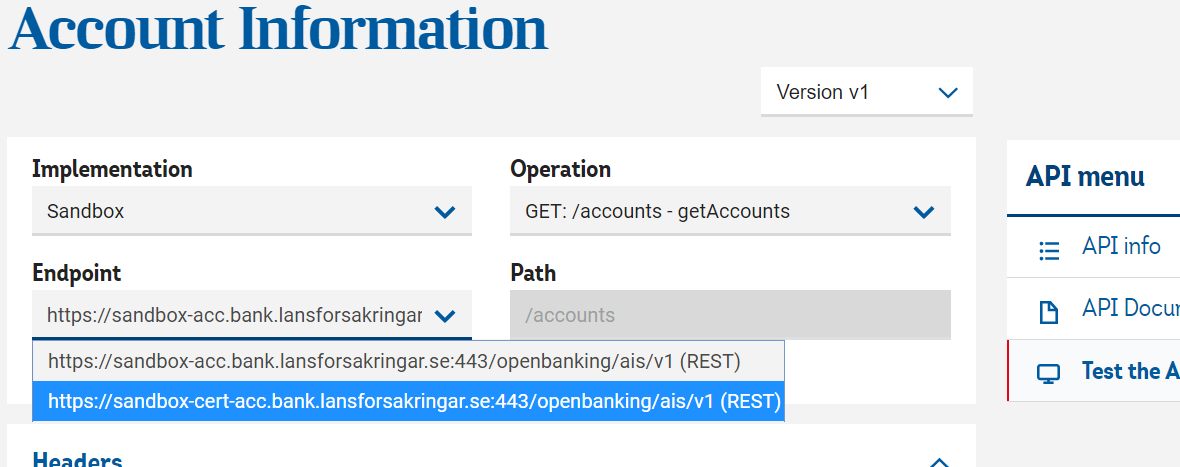
You can verify that your web authentication certificate works with our API in the sandbox certificate endpoint. Simply request access for the environment and start calling the sandbox certificate endpoints and you will be challenged for a certificate.
Sandbox Authorization
The APIs are using OAuth2 for authorization, which means that you will need to provide an access token for each API request.
Fetching an access token differs between the sandbox and live environment. For sandbox a simplified flow is used with client credentials while live environment has a complete flow with all authentication mechanisms.
Create an access token in Sandbox with OAuth API
To get an access token you need to provide your “App ID” and “Shared Secret”, both of those values are unique to each registered App in the Developer Portal. The credentials are provided to the /oauth2/v2/token endpoint to retrieve an access token.
To find the information about your App ID and Shared Secret, go to the “Details page” of your App in the Developer Portal.
Base path https://sandbox.bank.lansforsakringar.se:443
                POST /oauth2/v2/token

                Accept: application/json

                Content-Type: application/x-www-form-urlencoded
| Parameters | |
|---|---|
| grant_type: | client_credentials |
| client_id: | {the id for your app} ex. lfbank-6QjtY93mB9x2mlZtCMoMqt80 |
| client_secret: | {the shared secret of your app} ex. b8997b0605cb774f6b5e31e1ea32c5926407295 |
HTTP/1.1 200 OK - Response
{
    “access_token” : “Og6G1pL0Vkf5X0d9PZ5TyMXoEVjqW2ePn80VMMay”,
    “token_type” : “Bearer”,
    “expires_in” : 300
}
The received access token can now be used to call the other APIs. The token is of type “Bearer” and should be placed in the Authorization HTTP header (this needs to be provided when using other testing tools than the Test Client). An example is stated below.
                GET /openbanking/ais/v1/accounts

                Authorization: Bearer Og6G1pL0Vkf5X0d9PZ5TyMXoEVjqW2ePn80VMMay

                PSU-IP-Address: 127.0.0.1

                X-Request-ID: 40a80991-d973-401c-8078-445543b179fb

                Consent-ID: 7a5cf79d-edf6-4ccd-9056-c51f5b8c734f

                PSU-User-Agent: PSU-User-Agent
Create an access token in Sandbox with Test Client
In the Test Client, an access token can be created by calling the service as the following procedure:
- Select API and operation
- Delete Authorization header
- Add input for remaining required headers
- Click on Setup and select the correct App.
- Click on Security and Get Token → Next → Finish
- Click on Invoke
The access token can be found under Request Header.
                GET

                https://sandbox.bank.lansforsakringar.se:443/openbanking/ais/v1/accounts/

                HTTP/1.1

                Host: sandbox.bank.lansforsakringar.se:443

                Accept: application/json

                Consent-ID: d59f33b9-1e7a-4f99-8ced-332826586974

                PSU-IP-Address: 127.0.0.1

                X-Request-ID: d59f33b9-1e7a-4f99-8ced-332826586974

                Authorization: Bearer XFFB41A9ToM6DtG4PFqR1NGI20tWjTTkrJTzVQG3

                PSU-User-Agent: PSU-User-Agent
It is possible to add a token in the Authorization header in Test Client again by filling in the value from Authorization token from request header. By calling the service this way two access tokens will be added in the call.
                GET

                https://sandbox.bank.lansforsakringar.se:443/openbanking/ais/v1/accounts/

                HTTP/1.1

                Host: sandbox.bank.lansforsakringar.se:443

                Accept: application/json

                X-Request-ID: d59f33b9-1e7a-4f99-8ced-332826586974

                Authorization: Bearer RezDqfIVY252vo7uStC8gv7p8SSrD6ga4dziInc5, Bearer

                RezDqfIVY252vo7uStC8gv7p8SSrD6ga4dziInc5

                PSU-User-Agent: PSU-User-Agent
Invalid Access Token in Sandbox
Calling the service with a token that has expired will return:
401 Unauthorized - 1012116 - Invalid token
Calling the service without a token will return:
401 Unauthorized - 1012100 - Credentials invalid or missing.
Limitations in the Sandbox
In the current version of the Sandbox, only happy cases are implemented, meaning that when a service is executed correctly a code of either 200 (Ok) or 201 (Created) is returned. If incorrect input is provided to the service, a 404-code will be returned with a response body:
              {
                "tppMessages": [
                {
                  "code": "RESOURCE_UNKNOWN",
                  "text": "",
                  "category": "ERROR"
                }
                ]
              }
Or
            {
              "tppMessages": [
              {
                "code": "PRODUCT_UNKNOWN",
                "text": "",
                "category": "ERROR"
              }
              ]
            }
There are limitations of information of why the error has occurred, it could be either an invalid header or an invalid parameter etc.
In Sandbox, there is limited validation of the headers. All headers that are listed as required in the API description for each service should not be null but if so, a 404-error message will be returned. When Consent-ID is listed as a required header in the API description, it is implemented with a fixed preset UUID and is listed in the table below. The Authorization header requires to be of the format “Bearer {generated token}”.
Request headers Accept and Content-Type do not need to be set. But if set, they should have value application/json.
| Header | Key | Operation |
|---|---|---|
| Authorization | Bearer {generated token} | For all services (except the Consent Anonymous API) |
| Consent-ID | 86ff4eed-a04c-4743-9172-1ba466d7b3b9 | For all services (that has Consent-ID as a required header) |
There is a validation of the path parameters, which requires that the path parameters must correspond to the implementation in the request. A list of path variables and their values are found in the table below. The POST services will also return these Ids of the path parameters when executing the services in the Sandbox.
| Path variables | Key | Operation |
|---|---|---|
| accountId | RUnxQt5RDwJNoDLQeLGBVuo4bng_0kG NldcGHS7ZVik |
/accounts/{accountId} |
| accountId | xuZ401CphvTwT87rrbBhjot5XA2MlHa nEyJK56RFSrQ |
/accounts/{accountId} |
| paymentId | A_ZhgvMjDctO4OU4jCgToE3h4Vq99yL 9ROdv4nL_HbW |
/payments/{paymentId} |
| paymentId | L_1aAo15POaS6PXIsClaOb1l1AlTMc6 iFAauii2_A09 |
/payments/{paymentId} |
| paymentId | i_4mSjb1Po08U8nQDHEBy2XYIqbbDR qPVcOc1jk_t4X |
/payments/{paymentId} |
| paymentId | y_TTJf5uRsAzVnYDBTGVOos9Ks Y7C7whA9XxMXd_du4 |
/periodic-payments/{paymentId} |
| authorisationId | 6f7bc161-6e8b-4264-8f88- be8c5bf947e1 |
For all services (when required) |
| basketId | 8206aaf8-efe4-4417-bc2c- cb5581c40756 |
/signing-baskets/{basketId} |
| consentId | 86ff4eed-a04c-4743-9172- 1ba466d7b3b9 |
/consents/{consentId} |
| consentId | a509913f-cb54-47bc-907f- 73a7ae2b1022 |
/consents/confirmations-of-funds/ {consentId} |
| authorisationId | 5d8f9227-b469-439e-8bd7- 31adf9c0bf0d |
/consents/confirmation-of-funds/{consentId} /authorisations/{authorisationId} |
There is also a validation of the parameters (query parameters), and those are described in the documentation of each service. In the documentation, it is listed which different values a parameter could obtain.
For some of the POST services, it is required to input a request body. All required parameters in request.body need to be specified. Most of the parameters are implemented as regex, meaning that it requires the input to follow the structure specified in the API description. For example, a date needs to be of format “YYYY-MM-DD” and will return a 404-error message if specified in another format. As the Sandbox consists of mocked data, despite what the request body consists of, the same mocked data will be returned as a response, which means that the response will be the same despite which date is send in the request.
In the table below, there is a request.body example for each POST service (when body is required) that will generate a happy case.
Sandbox Test Data
| Service | Request body example |
|---|---|
| POST /payments/domestic-credit-transfers |
|
| POST /payments/domestic-giros |
|
| POST /payments/cross-border-credit-transfers |
|
| POST /periodic-payments/domestic-credit-transfers |
|
| POST /signing-baskets |
|
| POST /funds-confirmations |
|
| POST /consents/confirmation-of-funds |
|
Live Authorization
The APIs are using OAuth2 for authorization, which means that you will need to provide an access token for each API request.
Fetching an access token differs between the sandbox and live environment. For sandbox a simplified flow is used with client credentials while live environment has a complete flow with all authentication mechanisms.
OAuth2 metadata
Live OAuth2 endpoints are managed through a separate service but OAuth2 configurations for Apps are still configured via the developer portal.
You can find the metadata of the service at https://secure397.lansforsakringar.se/.well-known/openid-configuration
OAuth2 redirect URI
If you choose to add or change your redirect URI app configuration in the Developer Portal you will be required to contact the support. This is because the URLs have to be updated in our systems. Otherwise you will receive an “Invalid redirect_uri” error message.
Create an authorization code in Live
                GET
 /as/authorization.oauth2?client_id={clientId}&response_type=code&AuthorisationID={authorisationId}&redirect_uri={redirectUrl}&state={state}

                Accept: application/json

                Content-Type: application/x-www-form-urlencoded
| Parameter | |
|---|---|
| client_id: | The id for your app ex. lfbank-6QjtY93mB9x2mlZtCMoMqt80 |
| AuthorisationID | The authorization id of SCA |
| redirect_uri | (Optional) The redirect URI to use if more than one URI has been configured |
| state | The OAuth2 state parameter |
Create an access and refresh token in Live
                POST /as/token.oauth2

                Accept: application/json

                Content-Type: application/x-www-form-urlencoded


                client_id={clientId}

                &client_secret={client_secret}&grant_type=authorization_code&code={authorization_code}

                &redirect_uri={redirect_uri}
| Parameter | |
|---|---|
| client_id: | The id for your app ex. lfbank-6QjtY93mB9x2mlZtCMoMqt80 |
| client_secret | The client secret of your app. |
| authorization_code | The authorisation code previously received. |
| redirect_uri | (Optional) The redirect URI to use if more than one URI has been configured |
Refresh an access token in Live
When you create an access token you will also receive a refresh token which can be used to issue new access token.
                POST /as/token.oauth2

                Accept: application/json

                Content-Type: application/x-www-form-urlencoded


                grant_type=refresh_token&refresh_token={refresh_token}&client_id={client_id}

                &client_secret={client_secret}
| Parameter | |
|---|---|
| refresh_token | The refresh token. |
| client_id | The id for your app ex. lfbank-6QjtY93mB9x2mlZtCMoMqt80 |
| client_secret | The client secret of your app. |
SCA requirements
When the PSU is not present: You are only able to retrieve account balances and account transactions without a recent SCA (up to 4 times / day), this is done by calling the services without PSU-IP-Address.
- GET [Get account balances] /openbanking/ais/v1/accounts/{account-id}/balances
- GET [Get account transactions] /openbanking/ais/v1/accounts/{account-id}/transactions
In addition to this the PSU are also required to do a SCA in the last 90 days.
Länsförsäkringar Redirection Flow
Länsförsäkringar PSD2 API uses two sets of authorization methods to handle SCAs one of them being redirection.
Below we have provided a couple of examples of how the redirect flow works and which headers and parameters are important.
| Type | Name | Description |
|---|---|---|
| Header | TPP-Redirect-URI | URI of the TPP, where the authorization flow shall be redirected after PSU performs a SCA with positive result. |
| Header | TPP-Nok-Redirect-URI | This URI will be used instead of TPP-Redirect-URI in case of a SCA with negative result. |
| Parameter | redirect_uri | URI of the TPP where authorization flow shall be redirected after PSU performs A SCA with positive result. The following parameter can only be used when calling Oauth2 endpoints. |
Creation of Consent:
First create the consent by using the following service.
POST https://api.bank.lansforsakringar.se/openbanking/ano/v2/consents
Use the header: TPP-Nok-Redirect-URI for SCAs with negative results.
In the next request when you sign the consent and retrieve the access code, use the parameter redirect_uri, for your redirect uri (It must be the same URL as stated in the Developer Portal under App oauth2 configuration).
GET
https://secure397.lansforsakringar.se/as/authorization.oauth2?client_id={{client_id}}&response_type=code&AuthorisationID={{AuthorisationID}}&redirect_uri={{redirect_uri}}&state=12345 (Parameter: redirect_uri)
Afterwards call the token service to create the access and refresh token accordingly (use the authorization code which was retrieved in the previous call)
- POST https://secure397.lansforsakringar.se/as/token.oauth2
Access token is valid for 5 minutes
Refresh token does not expire
Now you can call the additional resources up to 20 minutes (validity off the SCA) based on that the PSU is present.
Example:
GET https://api.bank.lansforsakringar.se/openbanking/ais/v1/accounts
Renewal of SCA:
In order to access the resources again, you will need to call the Consent Authorisations endpoint first to perform a new SCA.
- POST /openbanking/ano/v2/consents/{{consentID}}/authorisations
- POST https://secure397.lansforsakringar.se/as/authorization.oauth2?client_id={{client_id}}&response_type=code&AuthorisationID={{AuthorisationID}}&redirect_uri={{redirect_uri}} (Parameter: redirect_uri)
- POST https://secure397.lansforsakringar.se/as/token.oauth2
- GET /openbanking/ais/v1/accounts
Signing Payments:
- POST /openbanking/pis/v3/payments/domestic-credit-transfers or /domestic-giros (Headers: TPP-Redirect-URI & TPP-Nok-Redirect-URI)
- POST /openbanking/pis/v3/signing-baskets (Headers: TPP-Redirect-URI & TPP-Nok-Redirect-URI)
- POST /openbanking/pis/v3/signing-baskets/{{BasketID}}/authorisations
- GET https://secure397.lansforsakringar.se/as/authorization.oauth2?client_id={{client_id}}&response_type=code&redirect_uri={{redirect_uri}}&AuthorisationID={{AuthorisationID}}
Länsförsäkringar Decoupled Flow
In the latest API versions Payment Initiation v4 and Consent Anonymous v3 we have added support to the authorization method decoupled. We have also introduced a new type of token, a client credential grant token. This token acts as a TPP token rather than a PSU token as the existing ACG-token does. In order to call the new API versions, you will need to use the new CCG tokens.
You can retrieve these by calling the existing token endpoint:
                    POST /as/token.oauth2

                    Accept: application/json

                    Content-Type: application/x-www-form-urlencoded


                    grant_type=client_credentials&client_id={client_id}&client_secret={client_secret}
| Parameter | |
|---|---|
| client_id | The id for your app ex. lfbank-6QjtY93mB9x2mlZtCMoMqt80 |
| client_secret | The client secret of your app. |
The new API versions are very similar to the existing once, but there are a few small changes, one of them being the “decoupled” header which you will set to “True/False” depending on what authorisation you want to initiate. Once the authorisation endpoint has been called the BankID flow will automatically be initiated for the user. In order to retrieve the sign status and the authorisationCode you will need to call/poll the consent anonymous sca status endpoint. /consents/{consentId}/authorisations/{authorisationId}.
Regarding the new PIS version, PIS v4 does not require a consentId to enable initiation of payments with a single SCA. In addition to this a “decoupled” header has also been added to the PIS v4 authorisation endpoint.
Proof Key for Code Exchange usage:
It is recommended to use the Proof Key for Code Exchange (PKCE) extension when communicating with the authorization server during the authorization code flow.
Both “plain” and “s256” code challenges is supported but “s256” is recommended.
Below is a simplified usage guide (see RFC7636 for details)
- Create code_verifier
- Create code_challenge
- plain:code_challenge = code_verifier
- s256: code_challenge = BASE64URL-ENCODE(SHA256(ASCII(code_verifier)))
- Call authorization endpoint (Create authorization code)
- Call token endpoint (Create an access token and refresh token)
                GET
/as/authorization.oauth2?client_id={clientId}&response_type=code&AuthorisationID={authorisationId}&redirect_uri={redirectUrl}&state={state}&code_challenge={code_challenge}&code_challenge_method={code_challenge_method}

                Accept: application/json

                Content-Type: application/x-www-form-urlencoded
code_challenge: (Optional) The PKCE code challenge
code_challenge_method: (Optional) The PKCE code challenge method used (“plain” or “s256”)
                POST
/as/token.oauth2

                Accept: application/json

                Content-Type: application/x-www-form-urlencoded


                client_id={clientId}&client_secret={client_secret}&grant_type=authorization_code&code={authorization_code}&redirect_uri={redirect_uri}&code_verifier={code_verifier}
code_verifier: (Optional) The PKCE code verifier
Postman Collection
The attached folder is a postman collection and it is an example of how to execute the different services.
API Overview
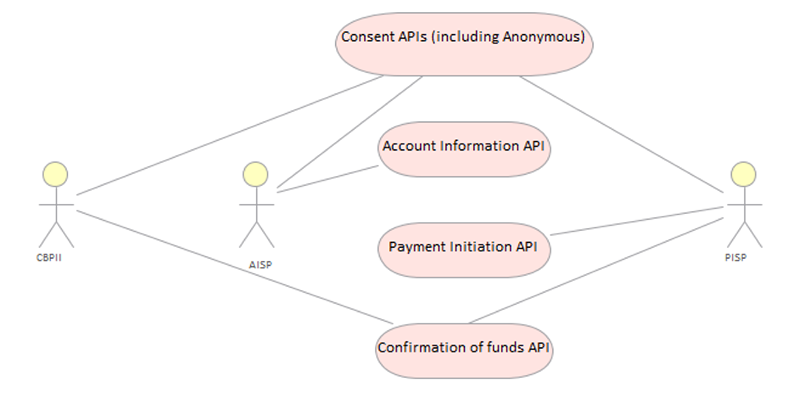
TPP roles
In the Sandbox, the TPP can have all roles (PIS, AIS and CBPII) and therefore have access to all operations.
In Live the eiDAS certificates will be reviewed during the onboarding process and used to authorize appropriate roles (AIS, PIS or CBPII) for accessing the operations offered in the PSD2 API.
Other information
The SCAOauth-link in the mocked responses does not exist, this due to the limitations of the Sandbox implementation. For the Live implementation, it returns a valid link in the response.
Please note that all links in the response will per default redirect to GET operations. Meaning that if a POST operation is executed and one link in the response is a further POST operation, this change must be done manually.
Using the APIs
To explain and make it easier to use the APIs, this section explains the authorization procedure and the main use cases.
Flows
The following flow charts show the main use cases for the PSU and the TPP. The flows explain in what order our APIs are called in a number of important scenarios.
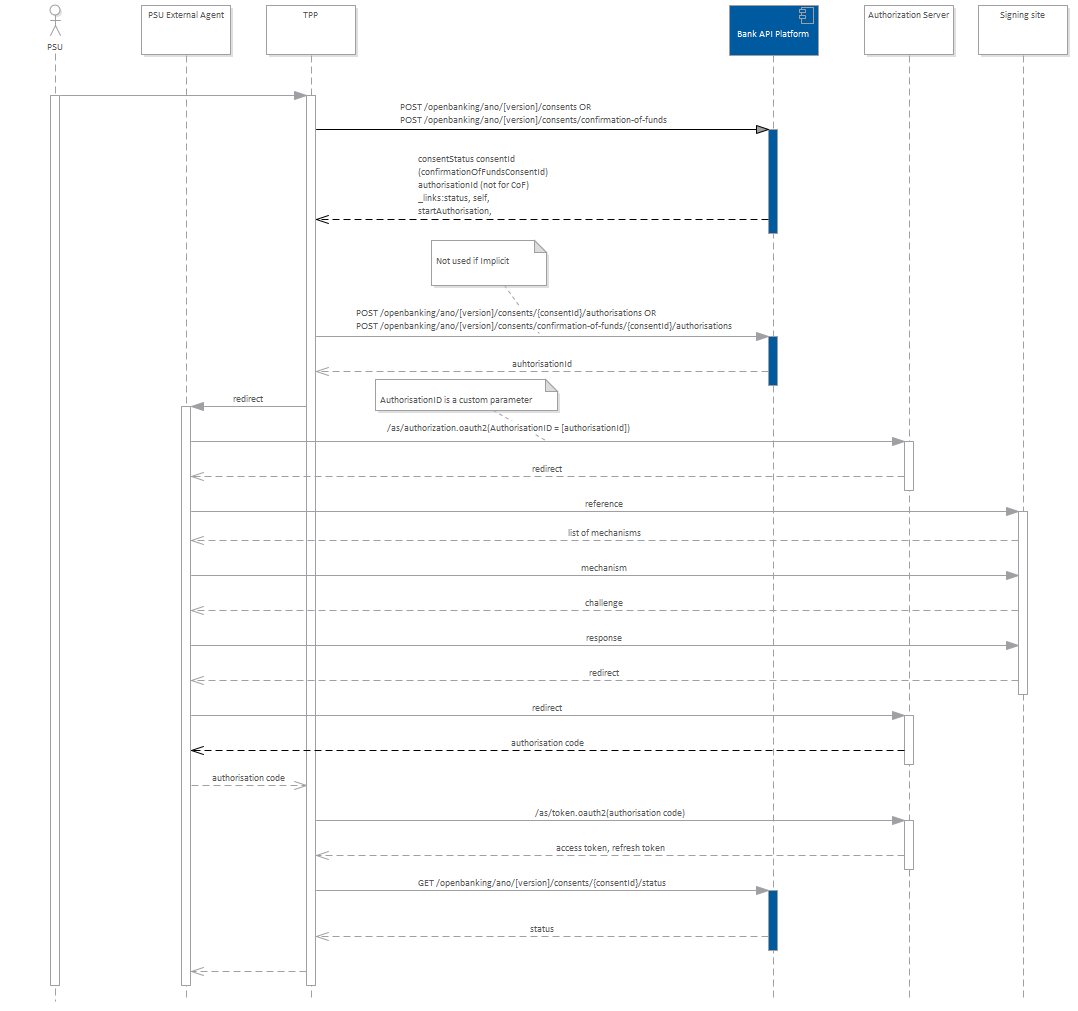
Consent SCA Flow
The Consent SCA Flow shows how a TPP can create a consent for the PSU to authorize.
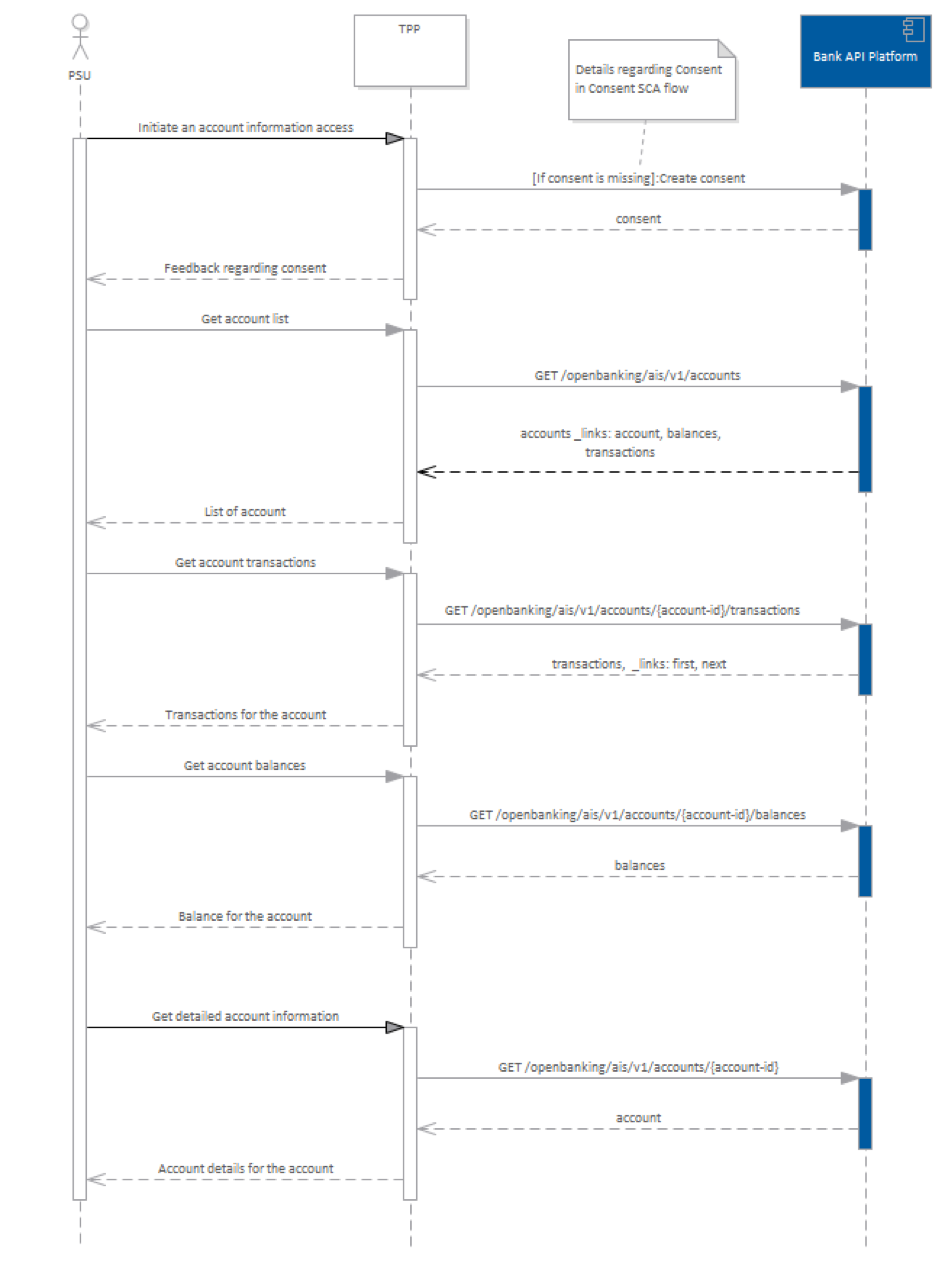
Account Information Flows
The Account Information Flows shows how a TPP can initiate the different account operations for a present PSU as described in the AIS API.
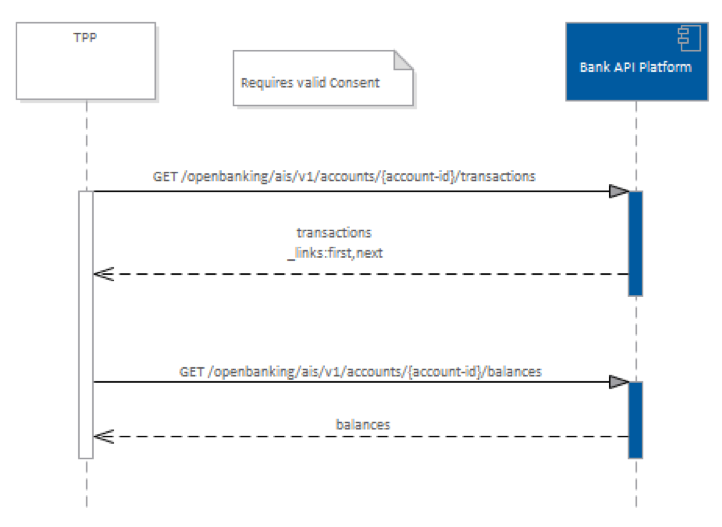
TPP Initiated Account Information Flows
The TPP Account Information Flows shows how a TPP can initiate the different account operations without a present PSU (background operations) as described in the AIS API.
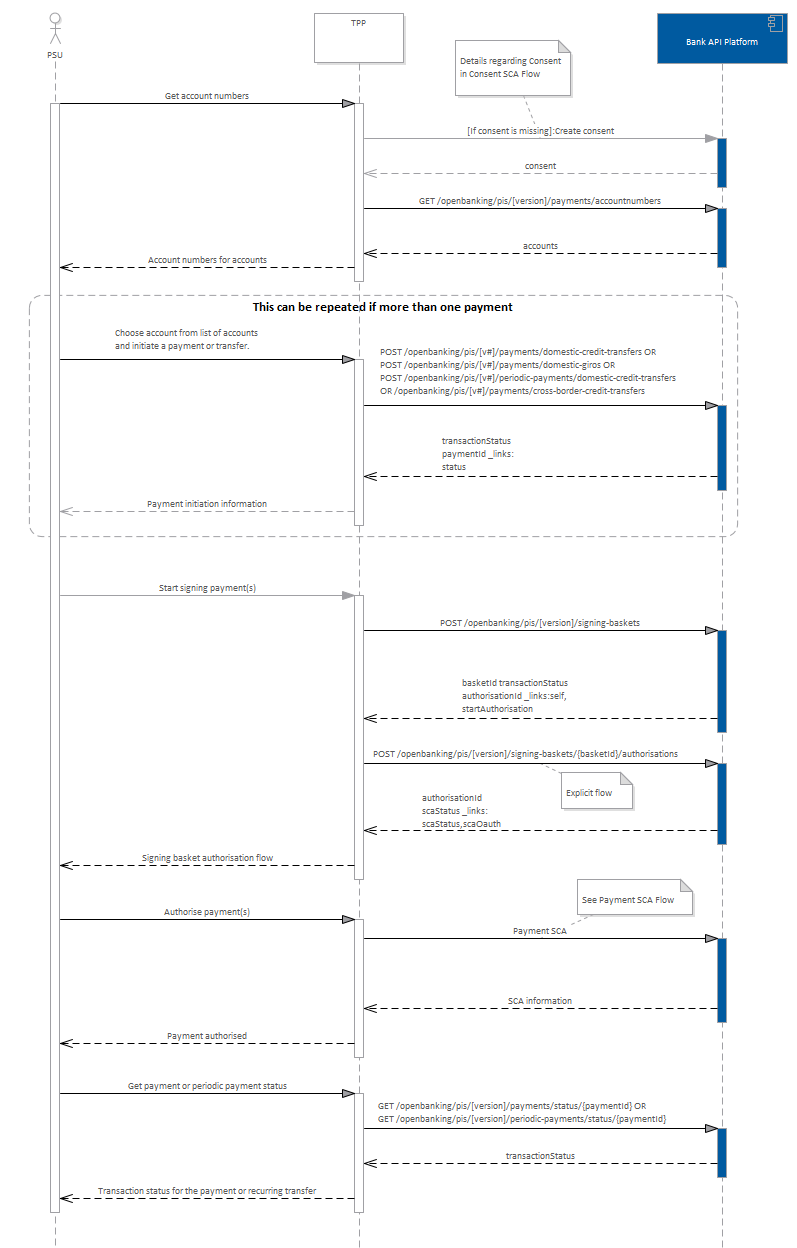
Payment Initiation Flow
The Payment Initiation Flow shows how a TPP can initiate one or many PSU-initiated payment(s) (domestic giros or credit transfers) including signing operations. The different operations are described in the PIS API.
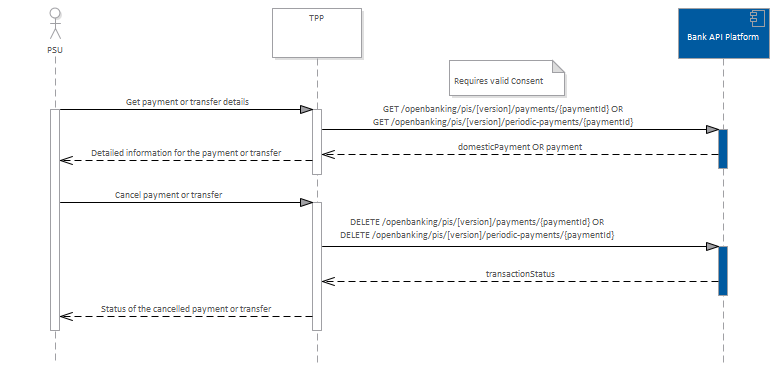
Payment Initiation Flows - Details/Cancel
The Payment Initiation Flow – Details/Cancel shows how a TPP can initiate the operations for showing detail for a payment and to cancel a payment when requested from PSU.
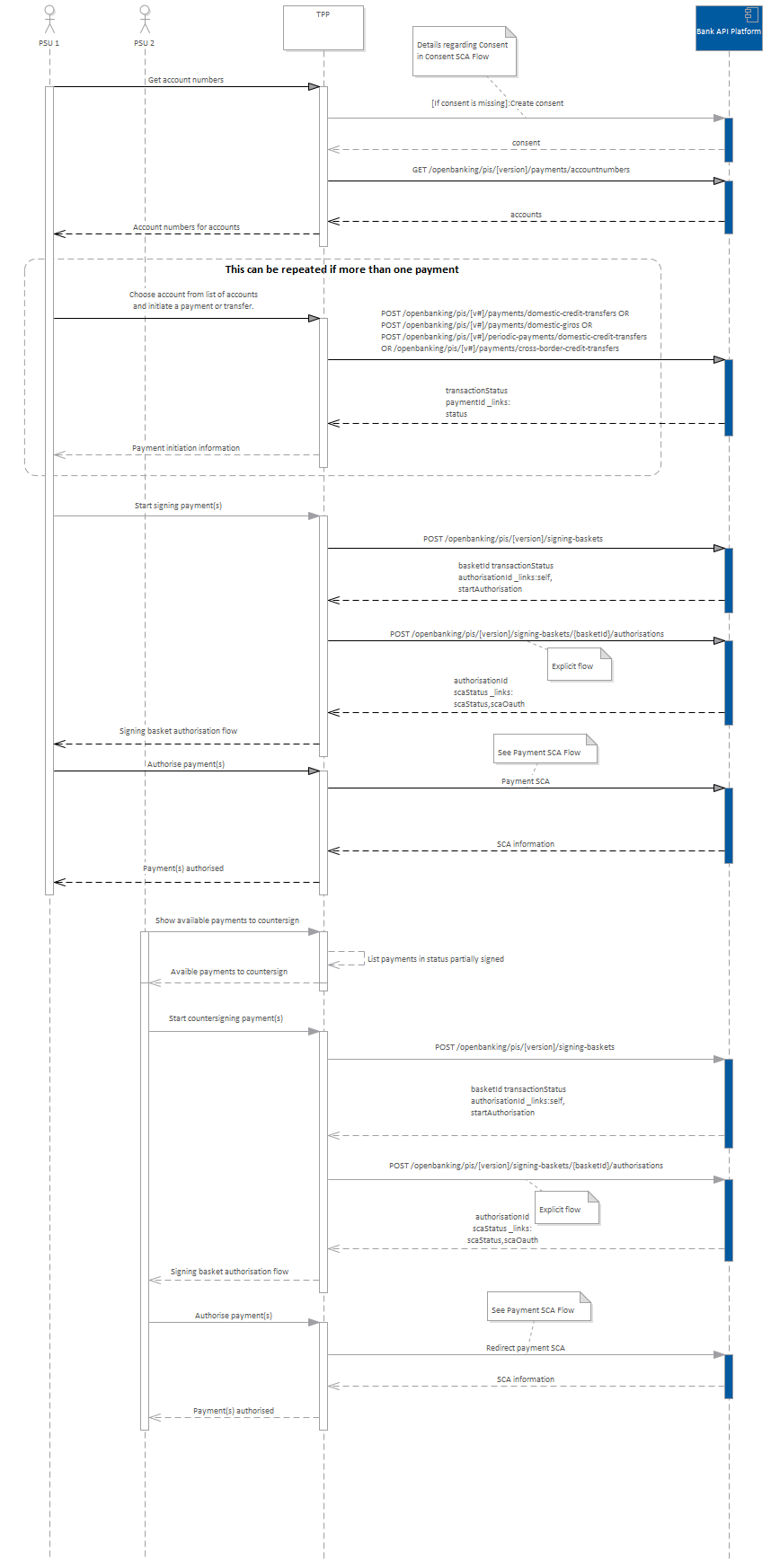
Payment Initiation Countersign Flow
The Payment Initiation Countersign Flow shows how a TPP can initiate one or many PSU-initiated payment(s) (domestic giros or credit transfers) that require countersign before executing. The different operations are described in the PIS API.
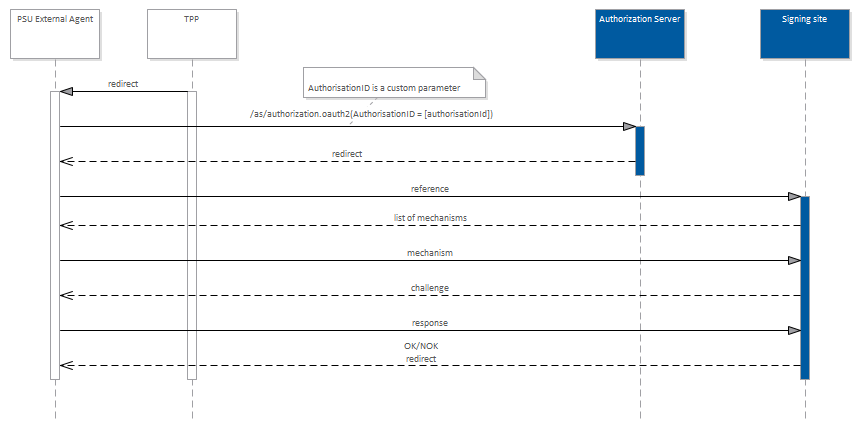
Payment SCA Flow
The Payment SCA Flow shows how a TPP initiate a SCA for authorization of a payment by the PSU.
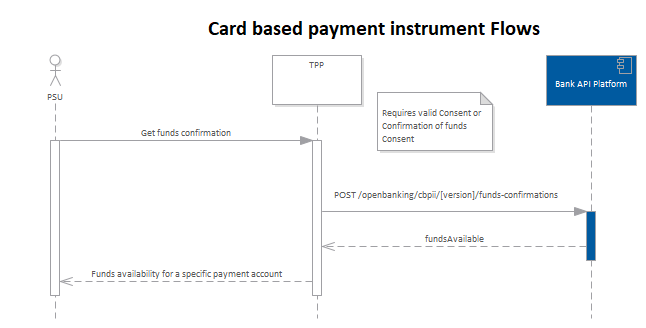
Card based payment instrument Flow
The Card based payment instrument Flow shows how a TPP can initiate the funds confirmation operation.
BankID Signing – What has changed
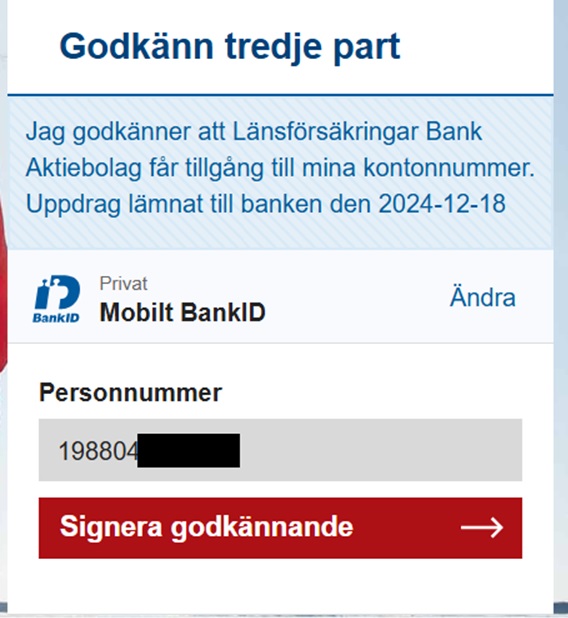
In recent year BankID team updated their BankID user interface and removed SSN input from the interface. Previously this used to be an open input where it was possible to change the SSN which became a security issue. Hence BankID team replaced that with a QR code scanning where when the signing starts a QR code image is displayed which PSU needs to manually scan through their mobile app with their mobile device.
The whole point of BankID signing is to generate ACG (Authorization Code Grants) token that is used to call the Account Information Services (AIS)
As of December 2024 BankID team is planning to shut down the signing mechanism that uses SSN as input key
Note: Please refer to section titled “Using the API’s”. The below section explains how the signing is done with BankID which is depicted in Using the APIs section.
Now the BankID has changed this functionality and introduced below functionality:
- QR code scanning
- Auto start token
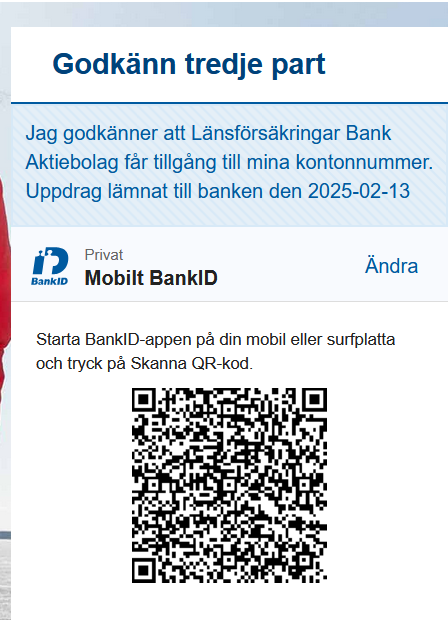
Here is the image describing QR functionality:
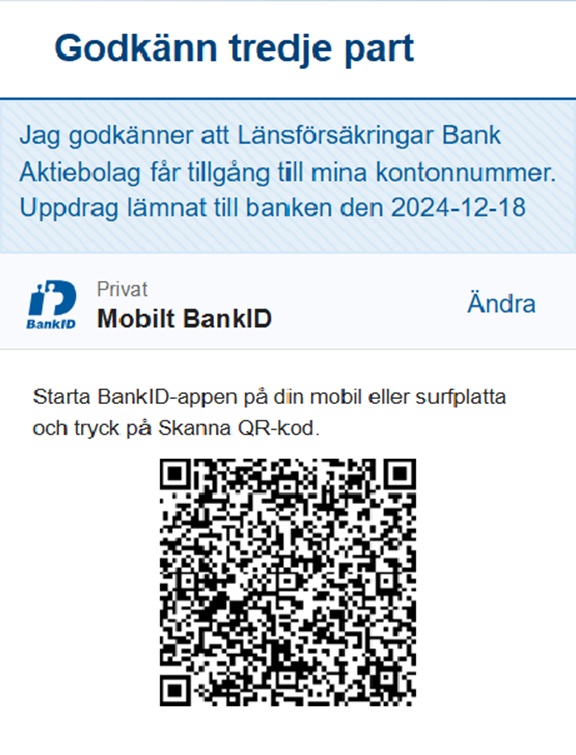
This QR code will keep changing every few seconds and will time out after 3 mins if not scanned within that time limit. TPP has two options based on the type of APP they are using.
- If TPP has a web page which is consumed by PSU, the TPP needs to display the QR code for PSU to scan on their web page.
- If TPP only has Mobile APP which is installed on a mobile device such as Phone or Tablets, then TPP needs to use ”Auto Start Token” delivered by the Open Banking service to autotrigger the BankID app on the mobile device.
For more information on BankID please visit https://www.bankid.com/en
Live Authorization SCA Flow – QR And Auto Start Token
Note: Please refer to "Consent SCA Flow" – Older Version to see how it used to work.
This section explains what changes were made on the Consent v3 to adapt to QR Token and BankID Auto Start Token
To adapt to new QR and auto start token changes, Consent ANO v3 API’s was upgraded to Consent ANO v4 version.
The version of API that TPP now needs to consume is ”Consent ANO v4”.
This API group has three basic services that helps TPP to get the QR code and Auto Start Token.
Consent signing is a pre-requisites to call the AIS services to verify account information.
OAuth2 metadata
Live OAuth2 endpoints are managed through a separate service but OAuth2 configurations for Apps are still configured via the developer portal.
You can find the metadata of the service at https://secure397.lansforsakringar.se/.well-known/openid-configuration
Create an CCG (Client Credential Grant) token Live
                Request:

POST /as/token.oauth2

                Accept: x-www-form-urlencoded

                Content-Type: application/x-www-form-urlencoded

                Body Type: x-www-form-urlencoded
                client_id={clientId}

                client_secret={client_secret}

                grant_type=client_credentials
| Parameter: | |
|---|---|
| client_id: | The id for your app ex. lfbank-6QjtY93mB9x2mlZtCMoMqt80 |
| client_secret: | The client secret of your app. |
| grant_type: | Client credentials. |
                    Response:

                    {

                    "access_token": "eyJhbGciOiJSUzI1NiIsImtpZCI6IjExIiwicGkuYXRtIjoiMyJ9.***************",

                    "token_type": "Bearer",

                "expires_in": 299

                }
Re-direct SCA Consent Flow
Approach 1: Set TPP-Explicit-Authorisation-Preferred to ”false”
Note:This header is used to indicate below points
- Whether the PSU wishes to delay the consent to TPP by a day or 2 or may be a week
- Whether the PSU wishes to grant the consent to TPP immediately
These to indicators are there to enable a PSU to validate whether they truly want to grant a TPP their consent. This header has no connection to whether the TPP are using Re-direct approach or Decoupled approach.
Step 1: Create Consent
URI: /openbanking/ano/v4/consents
Request Headers: To be used when calling consent services.
| Mandatory/Optional | Headers | Description |
|---|---|---|
| M | Authorization |
CCG Token generated through Create CCG Token |
| M | PSU-ID | SSN of the customer who is the end user |
| M | PSU-ID-Type | Should be SSSN by default |
| O | PSU-Corporate-ID | Organization number that belongs to a organization (Optional param should be used only when connecting organization |
| O | PSU- Corporate-ID-Type | SSSN or SON depending on organization or a sole trader |
| M | X-Request-ID | Unique ID that represents the call to the service. |
| M | TPP-Explicit-Authorisation-Preferred | Set this header to “false” |
| M | Body content | {} (Empty body) |
| M | PSU-IP-Address | IP address of the client device that is calling the service |
| M | PSU-User-Agent | User agent that is used to call the service |
| M | TPP-Redirect-URI | The URI configured for the TPP client APP where the authorisation code will sent in case of using “Redirect SCA” approach |
Usage of header: TPP-Explicit-Authorisation-Preferred: This header has two usages
- Set this to “false” it means that, the authorisation will be immediate
- And the flow that will be enabled is the “Re-direct SCA” approach
- In case of Re-direct SCA approach in the response you will get the Authorisation ID immediately
- Below is a sample response:
- Next step after getting this would be to call below endpoint:
- Once you hit that endpoint, you will be redirected to below page which asks for scanning QR
- Scan the QR code once signing is selected
- This above endpoint is a direct call to GEMI Ping Federate which basically returns the “Authorisation Code” as below

The above url is the URL that TPP would have configured for the TPP-Redirect-URI
- Once you get the authorisation code the next step is to call the ACG token endpoint to get the token as below:
Response: TPP-Explicit-Authorisation-Preferred is set to false
                    {

                    "consentId": "45792dad-c976-4582-ac20-5f81816d3cf5",

                    "consentStatus": "RECEIVED",

                    "authorisationId": "13ec44e3-33f2-4fb1-a4e6-8134a3e0f720",

                    "_links": {

                    "self": {
"href": "/openbanking/sec/v2/consents/45792dad-c976-4582-ac20-5f81816d3cf5"

                    },

                    "status": {

                    "href": "/openbanking/sec/v2/consents/45792dad-c976-4582-ac20-5f81816d3cf5/status"

                    },

                    "scaOAuth": {

                    "href": "https://secure397.lansforsakringar.se/.well-known/openid-configuration"

                    },

                    "scaStatus": {

                    "href": "/openbanking/ano/v4/consents/45792dad-c976-4582-ac20-5f81816d3cf5/authorisations/13ec44e3-33f2-4fb1-a4e6-8134a3e0f720"

                    }

                    }

                    }
https://secure397.lansforsakringar.se/as/authorization.oauth2?client_id={{client_id}}&response_type=code&AuthorisationID={{AuthorisationID}}&redirect_uri={{redirect_uri}}&securestart=true&state=XXXX
(Parameter: redirect_uri --- TPP-Redirect-URI)
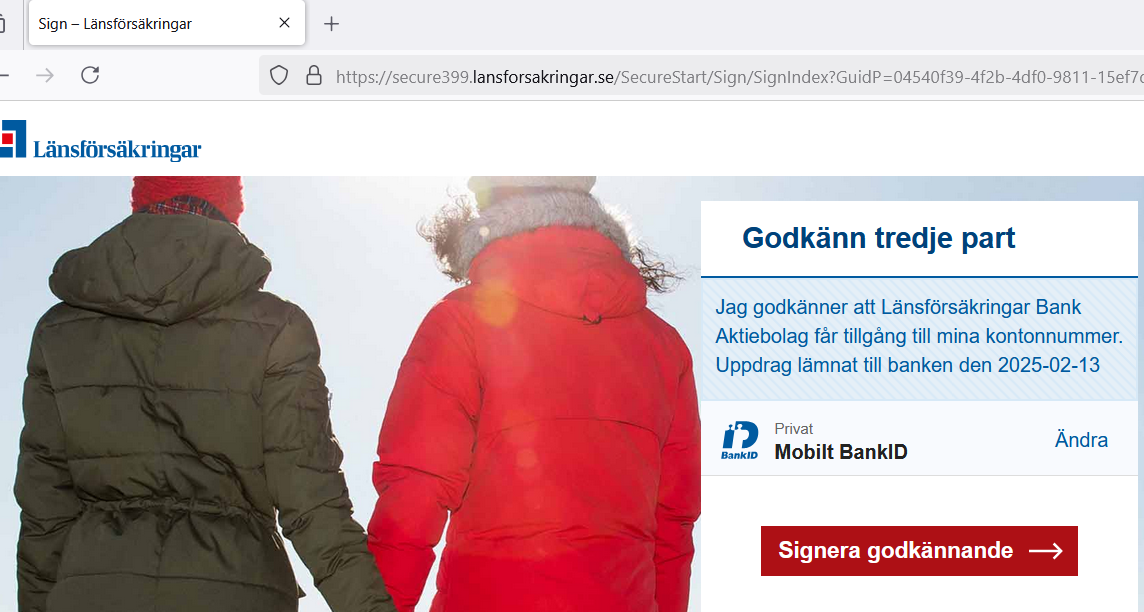
Special Note: It’s important that when calling with above endpoint TPP should mandatorily set ”securestart” param as true. If this is not done then it will go towards the OLD BankID where it was mandatory to set SSN. This will be shut down by BankID team soon. Hence make sure that ”securestart” param is set correctly
Note: ”state” for this parameter please refer to section on "Proof Key for Code Exchange usage:”
URI: https://secure397.lansforsakringar.se/as/token.oauth2
| Mandatory/Optional | Parameter | Value |
|---|---|---|
| M | client_id | APP client ID used by TPP |
| M | client_secret | APP client secret |
| M | redirect_uri | TPP Redirect URI configured in TPP App |
| M | grant_type | authorization_code |
| M | Code | ”code” param returned by GEMI |
| M | Body Type | X-www-form-urlencoded |
Response from Above:
                    {
                "access_token": "eyJhbGciOiJSUzI1NiIsImtpZCI6IjExIiwicGkuYXRtIjoiMyJ9.XXXXXXXXXXXXXXXXXXXXXXX",
                "refresh_token": "o616WvZdNMb2tYzhTKvxnon8kpMrVTi5ZxOWY1d2vN",
                "token_type": "Bearer",
                "expires_in": 299
                }
Approach 2: Set TPP-Explicit-Authorization-Preferred to ”true”
Step 1: Create Consent
URI: /openbanking/ano/v4/consents
Request Headers: To be used when calling consent services.
| Mandatory/Optional | Headers | Description |
|---|---|---|
| M | Authorization |
CCG Token generated through Create CCG Token |
| M | PSU-ID | SSN of the customer who is the end user |
| M | PSU-ID-Type | Should be SSSN by default |
| O | PSU-Corporate-ID | Organization number that belongs to a organization (Optional param should be used only when connecting organization |
| O | PSU- Corporate-ID-Type | SSSN or SON depending on organization or a sole trader |
| M | X-Request-ID | Unique ID that represents the call to the service. |
| M | TPP-Explicit-Authorisation-Preferred | Set this header to “true” |
| M | Body content | {} (Empty body) |
| M | PSU-IP-Address | IP address of the client device that is calling the service |
| M | PSU-User-Agent | User agent that is used to call the service |
| M | TPP-Redirect-URI | The URI configured for the TPP client APP where the authorisation code will sent in case of using “Redirect SCA” approach |
Response: TPP-Explicit-Authorisation-Preferred is set to true
- Here in the response, you see that authorisation id is not returned
- Also additionally you HREF link to “startAuthorisation”
- This is to indicate that TPP needs to explicitly call the endpoint to start authorisation
- Call /openbanking/ano/v4/consents/{consent-id}/authorisations to start the authorisation process
                {

                "consentId": "45792dad-c976-4582-ac20-5f81816d3cf5",

                "consentStatus": "RECEIVED",

                "_links": {

                "self": {

                "href": "/openbanking/sec/v2/consents/45792dad-c976-4582-ac20-5f81816d3cf5"

                },

                "status": {

                "href": "/openbanking/sec/v2/consents/45792dad-c976-4582-ac20-5f81816d3cf5/status"

                },

                "startAuthorisation": {

                "href": "/openbanking/ano/v4/consents/45792dad-c976-4582-ac20-5f81816d3cf5/authorisations"

                }

                }

                        }
Step 2: Consent Authorisation
Call URI: /openbanking/ano/v4/consents/{consent-id}/authorisations
This service doesn’t use the header ”TPP-Explicit-Authorisation-Preferred” instead has different header called ”Decoupled” to continue the flow
Request Headers:
| Mandatory/Optional | Headers | Description |
|---|---|---|
| M | Authorization | CCG Token generated through Create CCG Token |
| M | PSU-ID | SSN of the customer who is the end user |
| M | PSU-ID-Type | Should be SSSN by default |
| O | PSU-Corporate-ID | Organization number that belongs to an organization (Optional param should be used only when connecting organization) |
| O | PSU-Corporate-ID-Type | SSSN or SON depending on organization or a sole trader |
| M | X-Request-ID | Unique ID that represents the call to the service. |
| M | Decoupled | Set this to “false” |
| M | Body content | {} |
| M | PSU-IP-Address | IP address of the client device that is calling the service |
| M | PSU-User-Agent | User agent that is used to call the service |
Response From Service:
                    {

                    "scaStatus": "STARTED",

                    "consentId": "81586411-afc2-4f1e-a26b-f3813c832872",

                    "authorisationId": "13ec44e3-33f2-4fb1-a4e6-8134a3e0f720",

                    "_links": {

                    "self": {

                    "href": "/openbanking/sec/v2/consents/81586411-afc2-4f1e-a26b-f3813c832872"

                    },

                    "status": {

                    "href": "/openbanking/sec/v2/consents/81586411-afc2-4f1e-a26b-f3813c832872/status"

                    },

                    "scaOAuth": {

                    "href": "https://secure397.lansforsakringar.se/.well-known/openid-configuration"

                    },

                    "scaStatus": {

                    "href": "/openbanking/ano/v4/consents/81586411-afc2-4f1e-a26b-f3813c832872/authorisations/13ec44e3-33f2-4fb1-a4e6-8134a3e0f720"

                    }

                    }

                    }
Step 3: To Complete the authorisation follow the below steps
-
Call the below URI
Make sure to set ”securestart=true” so that TPP can see the QR code
https://secure397.lansforsakringar.se/as/authorization.oauth2?client_id={{client_id}}&response_type=code&AuthorisationID={{AuthorisationID}}&redirect_uri={{redirect_uri}}&securestart=true&state=XXXX (Parameter: redirect_uri --- TPP-Redirect-URI) - Once you hit that endpoint, you will be redirected to below page which asks for scanning QR
- Scan the QR code once signing is selected
- This above endpoint is a direct call to GEMI Ping Federate which basically returns the “Authorisation Code” as below
The above url is the URL that TPP would have configured for the TPP-Redirect-URI
- Once you get the authorisation code the next step is to call the ACG token endpoint to get the token as below:
URI: https://secure397.lansforsakringar.se/as/token.oauth2
| Mandatory/Optional | Parameter | Value |
|---|---|---|
| M | client_id | APP client ID used by TPP |
| M | client_secret | APP client secret |
| M | redirect_uri | TPP Redirect URI configured in TPP App |
| M | grant_type | authorization_code |
| M | Code | ”code” param returned by GEMI |
| M | Body Type | X-www-form-urlencoded |
Response from Above:
                    {
                    "access_token": "eyJhbGciOiJSUzI1NiIsImtpZCI6IjExIiwicGkuYXRtIjoiMyJ9.XXXXXXXXXXXXXXXXXXXXXXX",
                    "refresh_token": "o616WvZdNMb2tYzhTKvxnon8kpMrVTi5ZxOWY1d2vN",
                    "token_type": "Bearer",
                    "expires_in": 299
                    }
Decoupled SCA Consent Flow
Step 1: Create Consent
URI: /openbanking/ano/v4/consents
Request Headers: To be used when calling consent services.
| Mandatory/Optional | Header | Description |
|---|---|---|
| M | Authorization | CCG Token generated through Create CCG Token |
| M | PSU-ID | SSN of the customer who is the end user |
| M | PSU-ID-Type | Should be SSSN by default |
| O | PSU-Corporate-ID | Organization number that belongs to an organization (Optional param should be used only when connecting organization) |
| O | PSU-Corporate-ID-Type | SSSN or SON depending on organization or a sole trader |
| M | X-Request-ID | Unique ID that represents the call to the service. |
| M | TPP-Explicit-Authorisation-Preferred | Set this header to “true” to follow decoupled approach |
| M | Body content | {} |
| M | PSU-IP-Address | IP address of the client device that is calling the service |
| M | PSU-User-Agent | User agent that is used to call the service |
| M | TPP-Redirect-URI | URI where TPP would like to receive the auth codes depending on the flow used |
Usage of header: TPP-Explicit-Authorisation-Preferred:
- Set this to “true” it means that, the PSU performs explicit authorisation
- And the flow that will be enabled is the “Decoupled SCA” approach
- In case of Decoupled SCA approach in the response will not provide Authorisation ID Step 1.
- Below is a sample response:
Response: TPP-Explicit-Authorisation-Preferred is set to true
                {

                "consentId": "b370916b-1e53-4d37-978e-4d0914b74ff8",

                "consentStatus": "RECEIVED",

                "_links": {

                "self": {

                "href": "/openbanking/sec/v2/consents/b370916b-1e53-4d37-978e-4d0914b74ff8"

                },

                "status": {

                "href": "/openbanking/sec/v2/consents/b370916b-1e53-4d37-978e-4d0914b74ff8/status"

                },

                "startAuthorisation": {

                "href": "/openbanking/ano/v4/consents/b370916b-1e53-4d37-978e-4d0914b74ff8/authorisations"

                }

                }}
Step 2: Consent Authorisation
Set Decoupled header as true
Call URI: /openbanking/ano/v4/consents/{consent-id}/authorisations
Request Headers:
| Mandatory/Optional | Header | Description |
|---|---|---|
| M | Authorization | CCG Token generated through Create CCG Token |
| M | PSU-ID | SSN of the customer who is the end user |
| M | PSU-ID-Type | Should be SSSN by default |
| O | PSU-Corporate-ID | Organization number that belongs to an organization (Optional param should be used only when connecting organization) |
| O | PSU-Corporate-ID-Type | SSSN or SON depending on organization or a sole trader |
| M | X-Request-ID | Unique ID that represents the call to the service. |
| M | Decoupled | Set this to “true” to fetch the BankID QR code and autostart token |
| M | Body content | {} |
| M | PSU-IP-Address | IP address of the client device that is calling the service |
| M | PSU-User-Agent | User agent that is used to call the service |
| O | TPP-Redirect-URI | When following decoupled flow this header is optional. As Auth code will be returned when verifying the final state of signing |
Response From Service:
                {

                "scaStatus": "STARTED",

                "consentId": "81586411-afc2-4f1e-a26b-f3813c832872",

                "authorisationId": "fac57c99-12e4-418e-b5d0-0e2d4a3fa7d4",

                "bankIdAutoStartToken": "11598023-d5bf-412e-a719-5fb4a8156ede",

                "bankIdQrCode": "bankid.d145063f-9cc5-4163-a271-620eae531c58.0.3997b0fe70cdaf1f050f568a96f4af296df92045658e9d4f872ea3ff876119db",

                "_links": {

                "self": {

                "href": "/openbanking/sec/v2/consents/81586411-afc2-4f1e-a26b-f3813c832872"

                },

                "status": {

                "href": "/openbanking/sec/v2/consents/81586411-afc2-4f1e-a26b-f3813c832872/status"

                },

                "scaOAuth": {

                "href": "https://secure397.lansforsakringar.se/.well-known/openid-configuration"

                },

                "scaStatus": {

                "href": "/openbanking/ano/v4/consents/81586411-afc2-4f1e-a26b-f3813c832872/authorisations/fac57c99-12e4-418e-b5d0-0e2d4a3fa7d4"

                }

                }

                }
Note here in the response that we now have 2 additional parameters.
| Response Field | Description |
|---|---|
| bankIdAutoStartToken |
BankID auto start token that can be used to trigger the BankID app in mobile device. Applicable only if the TPP-Explicit-Authorisation-Preferred is set to False |
| bankIdQrCode | QR code that will be displayed in Web UI and can be scanned through BankID on mobile device. Applicable only if the TPP-Explicit-Authorisation-Preferred is set to False |
Two ways of signing:
- One where TPP have developed a web application
- One where TPP have developed a “Mobile APP”
In case TPP have ”Mobile APP” that PSU is consuming, then TPP need to use ”BankID Auto Start Token” from the above response.
This token is used to automatically trigger the ”BankID” in PSU’s Mobile Device.
In case TPP are using a ”Web Application” then, TPP need to use ”bankIdQrCode” and TPP need to ”Render the QR code” from response to ”Image” format in their web UI.
bankIdQrCode --- bankid.d145063f-9cc5-4163-a271-620eae531c58.0.3997b0fe70cdaf1f050f568a96f4af296df92045658e9d4f872ea3ff876119db
The above value needs to be rendered to image format by TPP in their web application.
One thing to keep in mind is that when rendering the above, TPP needs to ”Animate” the QR so that it will be dynamic.
To animate the above, TPP needs to call the below service in loop for 3 mins.
Step 3:
Service (GetConsentScaStatus): /openbanking/ano/v4/consents/{consent-id}/authorisations/{authorisation-id}
| Headers | Description | |
|---|---|---|
| M | Authorization |
CCG Token generated through Create CCG Token |
| M | PSU-ID | SSN of the customer who is the end user |
| M | PSU-ID-Type | Should be SSSN by default |
| O | PSU-Corporate-ID | Organization number that belongs to a organization (Optional param should be used only when connecting organization |
| O | PSU- Corporate-ID-Type | SSSN or SON depending on organization or a sole trader |
| M | X-Request-ID | Unique ID that represents the call to the service. |
| M | Body content | {} (Empty body) |
| M | PSU-IP-Address | IP address of the client device that is calling the service |
| M | PSU-User-Agent | User agent that is used to call the service |
| M | TPP-Redirect-URI | When following decoupled flow this header is optional. As Auth code will be returned when verifying the final state of signing |
Response:
                {

                "scaStatus": "STARTED",

                "bankIdAutoStartToken": "9c5af030-0cc2-4568-9bd3-c23a71399b34",

                "bankIdQrCode": "bankid.e1cec3f2-40f8-4a95-8c8a-8c8d93368b85.10.01403979a39e64705853e668c1c7e04204bb5d790f44ce1dd717f73e58c9fddb"

                }
Note that in the above, response the status of SCA is stated as ”STARTED”, which indicates to TPP that QR code rendering is on going. This status will change to ”ALREADY_IN_PROGRESS” when PSU scans the QR through their mobile device app.
In which case, QR code will be removed from service response
Note below that we have 2 different QR code from both calls from different service.
Note the highlighted parts
bankid.d145063f-9cc5-4163-a271-620eae531c58.0.3997b0fe70cdaf1f050f568a96f4af296df92045658e9d4f872ea3ff876119db
bankid.e1cec3f2-40f8-4a95-8c8a-8c8d93368b85.10.01403979a39e64705853e668c1c7e04204bb5d790f44ce1dd717f73e58c9fddb
From the first call to next the QR code keeps changing so TPP will always have fresh QR code that can be used to re-render the code to image format.
For more information on how this QR code is generated please go through the below link:
https://developers.bankid.com/getting-started/frontend/qr-code
Note: This content was written after the flow diagrams. This should be moved to before start of ”Sample Image of QR Rendering” section
Final Step in consent authorisation:
Once PSU has completed the QR scanning and signing of the same, TPP needs to follow the below steps:
Response From GetConsentScaService Call
                {

                "scaStatus": "FINALISED",

                "authorisationCode": "xFqWweIKRadH3ZpkJLgYOwjYNiDiIJoJ938AAABm"

                }
Note that instead of TPP explicitly calling token endpoint to receive the authorisation code as shown in image samples, TPP will have to call the GetConsentScaStatus service in loop so that they can get the authorisationCode in the response.
Once you get the authorisation code, next step is to call the Authorisation Oauth service as below:
Request
                URI: /as/token.oauth2

                Accept: x-www-form-urlencoded

                code:{{Authorisation-Code}}   --- This is the param that is in the response of GetConsentScaStatus service call

                grant_type:authorization_code

                client_secret:{{Client-Secret}}

                client_id:{{Client-ID}}

                redirect_uri:{{Redirect-URI}}
Response:
                {

                "access_token": "eyJhbGciOiJSUzI1NiIsImtpZCI6IjExIiwicGkuYXRtIjoiMyJ9.****************************************************************************",

                "refresh_token": "ZdRINAEv3FFZV3UPZICHxwZTXZCWEioJJN40c496EB",

                "token_type": "Bearer",

                "expires_in": 299

                }
This is the token that needs to be used when calling Account Information Services (AIS)
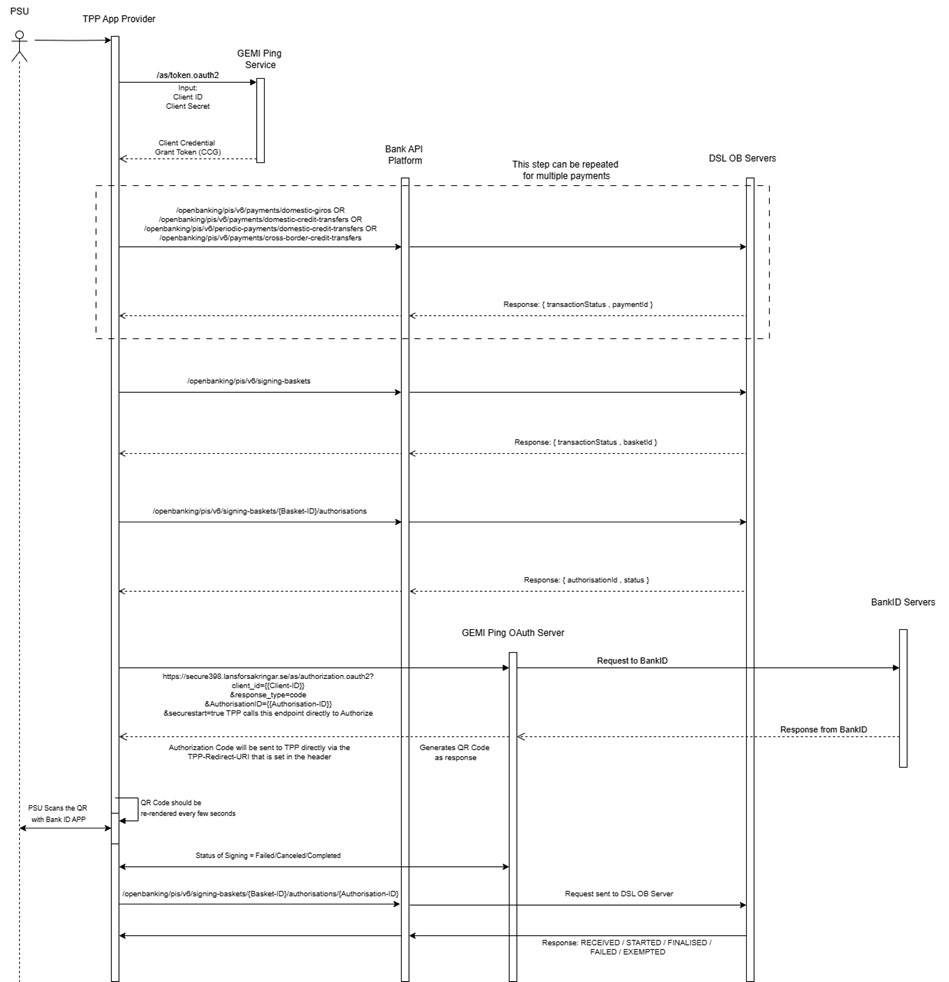
Payment SCA Flow – QR And Auto Start Token
Step 1: Create any type of payment using below endpoints with required headers
| HTTP Method | Service Name | URI |
|---|---|---|
| POST | CreateDomesticPayment | /openbanking/pis/v6/payments/domestic-giros |
| POST | CreateForeignPayment | /openbanking/pis/v6/payments/cross-border-credit-transfers |
| POST | CreateDomesticTransfer | /openbanking/pis/v6/payments/domestic-credit-transfers |
| POST | CreateRecurringTransfer | /openbanking/pis/v6/periodic-payments/domestic-credit-transfers |
| GET | GetPaymentOrTransfer | /openbanking/pis/v6/payments/{paymentId} |
| GET | GetRecurringTransfer | /openbanking/pis/v6/periodic-payments/{paymentId} |
| DELETE | CancelPaymentOrTransfer | /openbanking/pis/v6/payments/{paymentId} |
| DELETE | CancelRecurringTransfer | /openbanking/pis/v6/periodic-payments/{paymentId} |
| GET | GetSigningBasket | /openbanking/pis/v6/signing-baskets/{basket-id} |
Headers for the above services
| Mandatory/Optional | Headers | Description |
|---|---|---|
| M | Authorization | CCG Token generated through Create CCG Token |
| M | PSU-ID | SSN of the customer who is the end user |
| M | PSU-ID-Type | Should be SSSN by default |
| O | PSU-Corporate-ID | Organization number that belongs to an organization (Optional param should be used only when connecting organization) |
| O | PSU-Corporate-ID-Type | SSSN or SON depending on organization or a sole trader |
| M | X-Request-ID | Unique ID that represents the call to the service. |
| M | Body content | Request matching the description mentioned in the API specification |
| M | PSU-IP-Address | IP address of the client device that is calling the service |
| M | PSU-User-Agent | User agent that is used to call the service |
Re-direct SCA Payment Sign Flow
Note: Below steps are to be followed only when you completed the Signing Basket creation and have the ”Basket-ID” at the ready for completing signing
Call URI: /openbanking/pis/v6/signing-baskets – CreateSigningBasket
Request Headers:
| Mandatory/Optional | Headers | Description |
|---|---|---|
| M | Authorization | CCG Token generated through Create CCG Token |
| M | PSU-ID | SSN of the customer who is the end user |
| M | PSU-ID-Type | Should be SSSN by default |
| O | PSU-Corporate-ID | Organization number that belongs to an organization (Optional param should be used only when connecting organization) |
| O | PSU-Corporate-ID-Type | SSSN or SON depending on organization or a sole trader |
| M | X-Request-ID | Unique ID that represents the call to the service. |
| M | Body content | Refer to the table below |
| M | PSU-IP-Address | IP address of the client device that is calling the service |
| M | PSU-User-Agent | User agent that is used to call the service |
| M | TPP-Redirect-URI | The URI configured for the TPP client APP where the authorisation code will be sent in case of using “Redirect SCA” approach |
| M | Decoupled | Should be set to “false” |
Body Content:
| Request | Value |
|---|---|
| Input: Payment Id |
{
   "transactions": [
       {
           "paymentId": "{{Payment-ID}}"
       },
       {
           "paymentId": "{{Payment-ID}}"
       },
       ...
       "Total 99 payments can be combined in 1 basket"
   ]
}
|
| Note: | Only Domestic Payment, Recurring Transfer and Domestic Transfer can be combined in one basket. Foreign Payment should be added a separate basket from the above. |
Response from service:
                {

                "transactionStatus": "RCVD",

                "basketId": "b525a52f-91dd-458e-a75a-3b24690e1ccf",  --- Input for the next step

                "_links": {

                "self": {

                "href": "/openbanking/pis/v6/signing-baskets/b525a52f-91dd-458e-a75a-3b24690e1ccf"

                },

                "startAuthorisation": {

                "href": "/openbanking/pis/v6/signing-baskets/b525a52f-91dd-458e-a75a-3b24690e1ccf/authorisations"

                }

                }

                }
Call URI: /openbanking/pis/v6/signing-baskets/{basket-id}/authorisations with below headers
| Mandatory/Optional | Header | Description |
|---|---|---|
| M | Authorization | CCG Token generated through Create CCG Token |
| M | PSU-ID | SSN of the customer who is the end user |
| M | PSU-ID-Type | Should be SSSN by default |
| O | PSU-Corporate-ID | Organization number that belongs to an organization (Optional param should be used only when connecting organization) |
| O | PSU-Corporate-ID-Type | SSSN or SON depending on organization or a sole trader |
| M | X-Request-ID | Unique ID that represents the call to the service. |
| M | Body content | Request matching the description mentioned in the API specification {} – Empty Body |
| M | PSU-IP-Address | IP address of the client device that is calling the service |
| M | PSU-User-Agent | User agent that is used to call the service |
| M | Decoupled | Should be set to “false” |
Response From Service:
                {

                "authorisationId": "74f69d41-2d81-40e0-a623-595b6ccd2818",

                "scaStatus": "STARTED",

                "_links": {

                "self": {

                "href": "/openbanking/pis/v6/signing-baskets/385c4017-506a-4af4-a966-93c18ec8407b"

                },

                "scaOAuth": {

                "href": "https://secure397.lansforsakringar.se/.well-known/openid-configuration"

                }

                }

                }
Next: Call
https://secure397.lansforsakringar.se/as/authorization.oauth2?client_id={{client_id}}&response_type=code&AuthorisationID={{AuthorisationID}}&redirect_uri={{redirect_uri}}&securestart=true&state=XXXX
(Parameter: redirect_uri --- TPP-Redirect-URI)
Final Step: Call /openbanking/pis/v6/signing-baskets/{basket-id}/authorisations/{authorisation-id}
To get the status of SCA authorisation
Point to Note: This service should be called in a loop to fetch the final status. Also between the call to start authorisation of payment to GET service, there should be at least few second delay, because in the background there are other call that happens which updates the status
Request Header:
| Mandatory/Optional | Headers | Description |
|---|---|---|
| M | Authorization | CCG Token generated through Create CCG Token |
| M | PSU-ID | SSN of the customer who is the end user |
| M | PSU-ID-Type | Should be SSSN by default |
| O | PSU-Corporate-ID | Organization number that belongs to an organization (Optional param should be used only when connecting organization) |
| O | PSU-Corporate-ID-Type | SSSN or SON depending on organization or a sole trader |
| M | X-Request-ID | Unique ID that represents the call to the service. |
| M | Body content | Request matching the description mentioned in the API specification |
| M | PSU-IP-Address | IP address of the client device that is calling the service |
| M | PSU-User-Agent | User agent that is used to call the service |
To verify individual payment status call below services:: (These services should be called only after the Basket Signing is completed otherwise you will get the wrong status)
| HTTP Method | Service Name | URI |
|---|---|---|
| GET | GetPaymentOrTransfer | /openbanking/pis/v6/payments/{paymentId} For: Domestic Transfer, Foreign Payment, Domestic Payment |
| GET | GetRecurringTransfer | /openbanking/pis/v6/periodic-payments/{paymentId} For: Recurring Transfer |
To cancel any payment call below:
Note: If the payment is already executed by signing through Authorisation endpoints, then these should not be used to cancel the payment which are already executed.
Reason being, amount would have already debited from Customers account based on the execution date requested by customer
| HTTP Method | Service Name | URI |
|---|---|---|
| DELETE | GetPaymentOrTransfer | /openbanking/pis/v6/payments/{paymentId} For: Domestic Transfer, Foreign Payment, Domestic Payment |
| DELETE | GetRecurringTransfer | /openbanking/pis/v6/periodic-payments/{paymentId} For: Recurring Transfer |
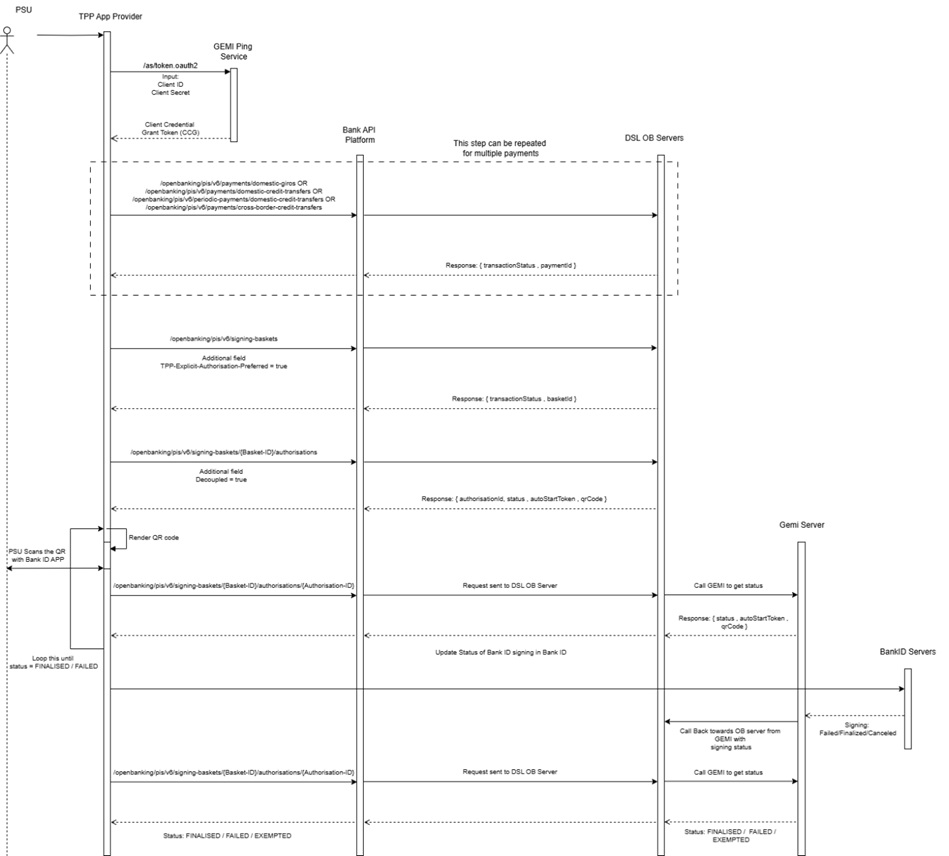
Decoupled SCA Payment Sign Flow
Note: Below steps are to be followed only when you completed the Signing Basket creation and have the ”Basket-ID” at the ready for completing signing
Call URI: /openbanking/pis/v6/signing-baskets – CreateSigningBasket
Request Headers:
| Mandatory/Optional | Header | Description |
|---|---|---|
| M | Authorization | CCG Token generated through Create CCG Token |
| M | PSU-ID | SSN of the customer who is the end user |
| M | PSU-ID-Type | Should be SSSN by default |
| O | PSU-Corporate-ID | Organization number that belongs to an organization (Optional param should be used only when connecting organization) |
| O | PSU-Corporate-ID-Type | SSSN or SON depending on organization or a sole trader |
| M | X-Request-ID | Unique ID that represents the call to the service. |
| M | Body content | Refer to the table below |
| M | PSU-IP-Address | IP address of the client device that is calling the service |
| M | PSU-User-Agent | User agent that is used to call the service |
| M | TPP-Redirect-URI | The URI configured for the TPP client APP where the authorization code will be sent in case of using “Redirect SCA” approach |
| M | Decoupled | Should be set to “false” |
Body Content:
| Request | Value |
|---|---|
| Input: Payment Id |
{
   "transactions": [
       {
           "paymentId": "{{Payment-ID}}"
       },
       {
           "paymentId": "{{Payment-ID}}"
       },
       ...
       "Total 99 payments can be combined in 1 basket"
   ]
}
|
| Note: | Only Domestic Payment, Recurring Transfer and Domestic Transfer can be combined in one basket. Foreign Payment should be added a separate basket from the above. |
Response from service:
                {

                "transactionStatus": "RCVD",

                "basketId": "b525a52f-91dd-458e-a75a-3b24690e1ccf",

                "_links": {

                "self": {

                "href": "/openbanking/pis/v6/signing-baskets/b525a52f-91dd-458e-a75a-3b24690e1ccf"

                },

                "startAuthorisation": {

                "href": "/openbanking/pis/v6/signing-baskets/b525a52f-91dd-458e-a75a-3b24690e1ccf/authorisations"

                }

                }

                }
Call URI: /openbanking/pis/v6/signing-baskets/{basket-id}/authorisations with below headers
| Mandatory/Optional | Headers | Description |
|---|---|---|
| M | Authorization | CCG Token generated through Create CCG Token |
| M | PSU-ID | SSN of the customer who is the end user |
| M | PSU-ID-Type | Should be SSSN by default |
| O | PSU-Corporate-ID | Organization number that belongs to an organization (Optional param should be used only when connecting organization) |
| O | PSU-Corporate-ID-Type | SSSN or SON depending on organization or a sole trader |
| M | X-Request-ID | Unique ID that represents the call to the service. |
| M | Body content | Request matching the description mentioned in the API specification |
| M | PSU-IP-Address | IP address of the client device that is calling the service |
| M | PSU-User-Agent | User agent that is used to call the service |
| M | Decoupled | Should be set to “true” |
Response From Service
                                    {

                                    "authorisationId": "1446cc70-edac-44d7-9cc0-f90c81ef2c5c",

                                    "scaStatus": "STARTED",

                                    "bankIdAutoStartToken": "d9eb5e25-7ced-4bcd-8205-d881771efaba",

                                    "bankIdQrCode": "bankid.2067c4b0-1c97-407a-b0cb-5428b55a8932.0.9be46edb87ed7de335da6cc1479473b522905ffd72ca600124c4f5e25c8d64b3",

                                    "_links": {

                                    "self": {

                                    "href": "/openbanking/pis/v6/signing-baskets/4858e78d-d24c-4785-8f9e-1d04608cb92b"

                                    },

                                    "scaOAuth": {

                                    "href": "https://secure397.lansforsakringar.se/.well-known/openid-configuration"

                                    }

                                    }

                                    }
Now TPP needs to use that BankID QR code details to display the QR code to customer.
To make the QR code dynamic and animated, call the below endpoint
/openbanking/pis/v6/signing-baskets/{{basket-id}}/authorisations/{{authorisation-id}}
| Mandatory/Optional | Headers | Description |
|---|---|---|
| M | Authorization | CCG Token generated through Create CCG Token |
| M | PSU-ID | SSN of the customer who is the end user |
| M | PSU-ID-Type | Should be SSSN by default |
| O | PSU-Corporate-ID | Organization number that belongs to an organization (Optional param should be used only when connecting organization) |
| O | PSU-Corporate-ID-Type | SSSN or SON depending on organization or a sole trader |
| M | X-Request-ID | Unique ID that represents the call to the service. |
| M | Body content | Request matching the description mentioned in the API specification |
| M | PSU-IP-Address | IP address of the client device that is calling the service |
| M | PSU-User-Agent | User agent that is used to call the service |
                        {

                    "scaStatus": "STARTED",

                    "bankIdAutoStartToken": "49892a59-df11-4103-babd-fd4cf5de58d3",

                    "bankIdQrCode": "bankid.0a5008c9-2744-411c-93b6-c1c4152dad04.23.f8d2f5c22a8ade259956cb6b5da733ab2b25f5abde6d5350fa999e746002acf1"

                    }
This service should be called in loop until the status of SCA either turns to any of the below 3:
- ALREADY_IN_PROGRESS – PSU has scanned the QR code
- FAILED – Either PSU cancelled the signing or something went wrong during the signing
- FINALISED – PSU has completed the SCA signing.
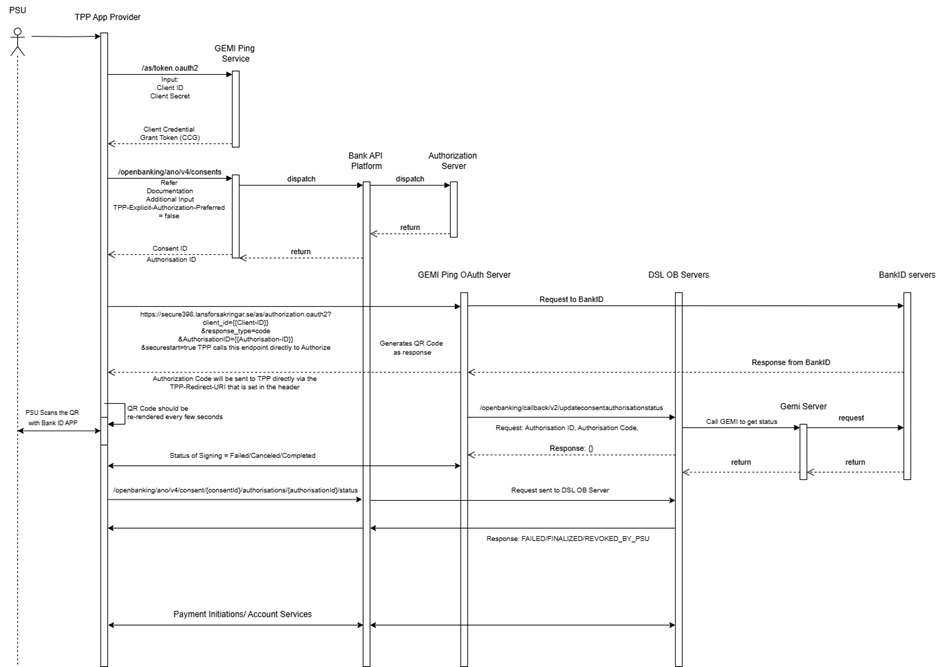
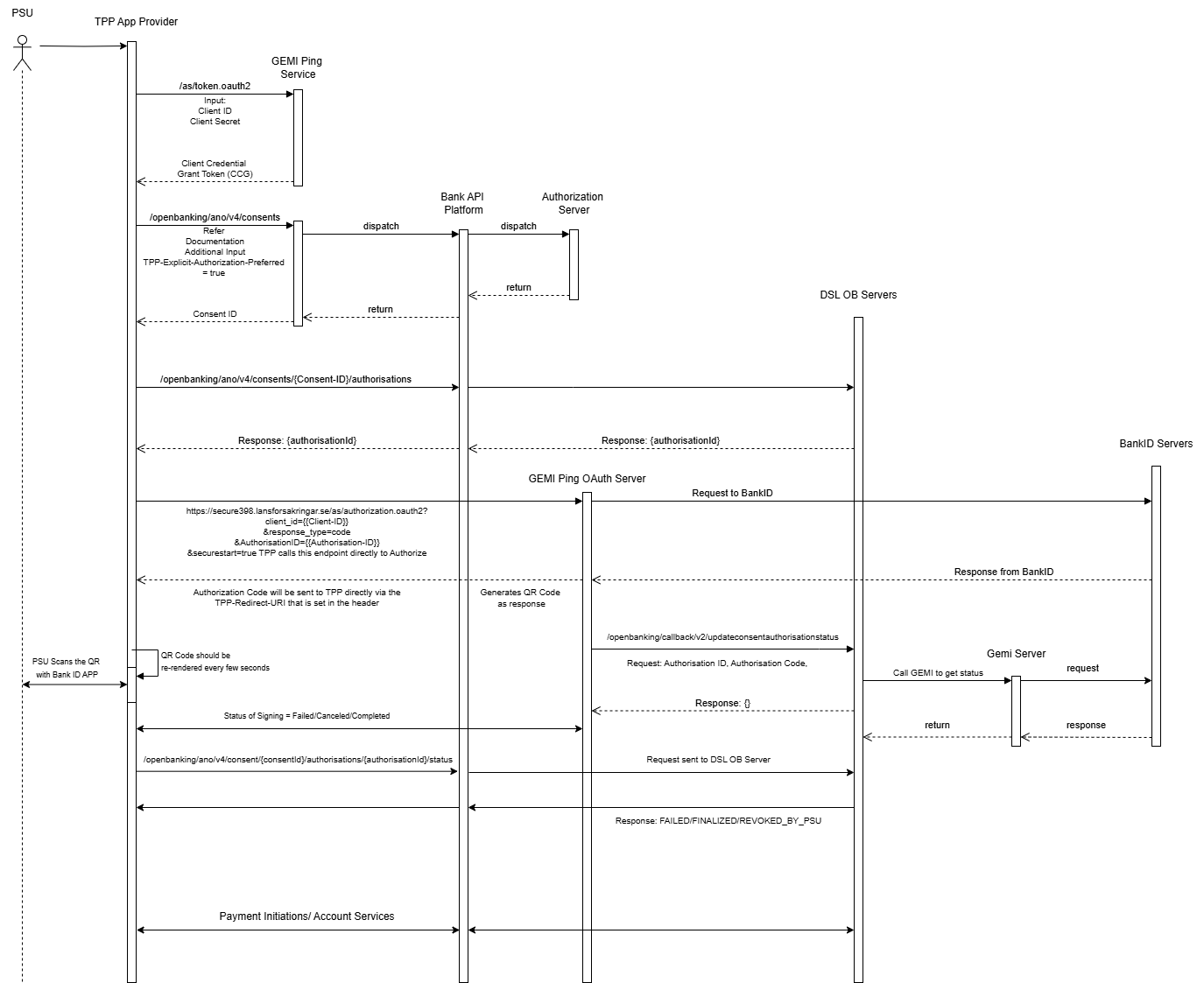
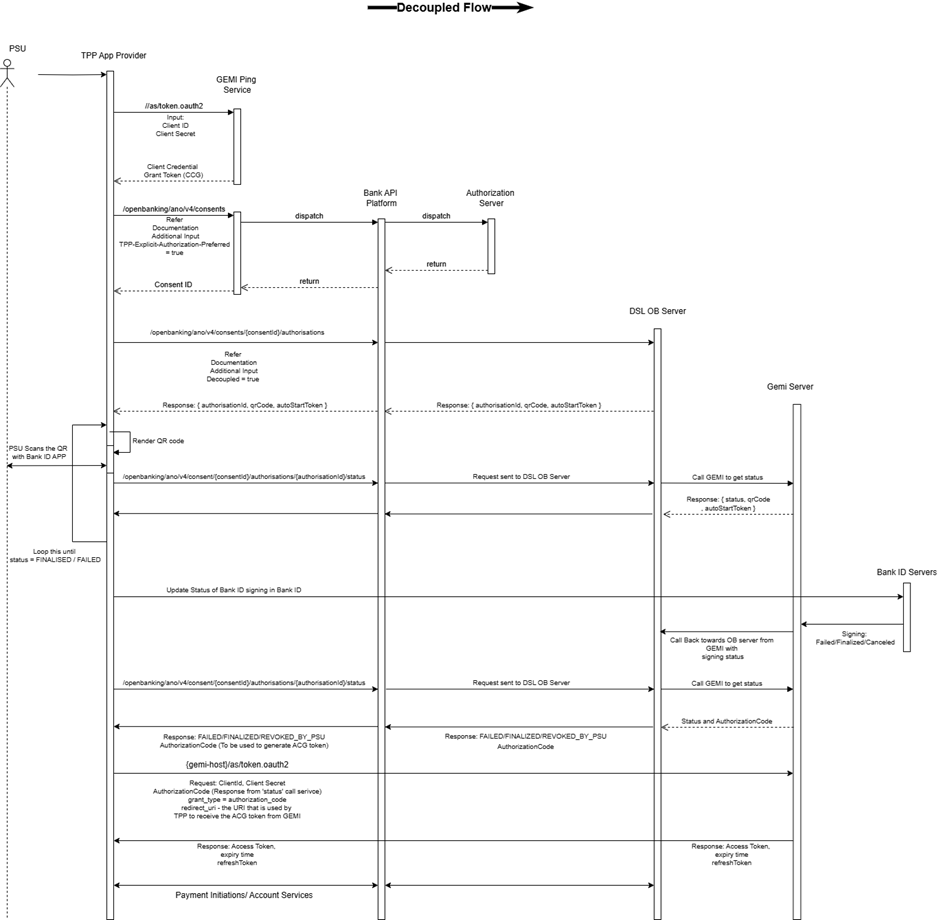
Consent Authorization
- Re-direct SCA with TPP-Explicit-Authorisation-Preferred set as “false”
- Re-direct SCA with TPP-Explicit-Authorisation-Preferred set as “true”
- Decoupled Flow
Payment Authorisation Flow
- Redirect SCA Approach
- Decoupled Flow
New API’s Deployed as part of BankID changes
API – Consent ANO v4
| HTTP Method | Service Name | URI |
|---|---|---|
| POST | CreateConsent | /openbanking/ano/v4/consents |
| POST | CreateConsentAuthorisation | /openbanking/ano/v4/consents/{consent-id}/authorisations |
| GET | GetConsentScaStatus | /openbanking/ano/v4/consents/{consent-id}/authrosations/{authorisation-id} |
API – Payment PIS v6 (Payment Domain)
| HTTP Method | Service Name | URI |
|---|---|---|
| POST | CreateDomesticPayment | /openbanking/pis/v6/payments/domestic-giros |
| POST | CreateDomesticTransfer | /openbanking/pis/v6/payments/domestic-credit-transfers |
| POST | CreateForeignPayment | /openbanking/pis/v6/payments/cross-border-credit-transfers |
| POST | CreateRecurringTransfer | /openbanking/pis/v6/periodic-payments/domestic-credit-transfers |
| DELETE | CancelPaymentOrTransfer | /openbanking/pis/v6/payments/{{Payment-ID}} |
| DELETE | CancelRecurringTransfers | /openbanking/pis/v6/periodic-payments/domestic-credit-transfers/{{Payment-ID}} |
| GET | GetRecurringTransfers | /openbanking/pis/v6/periodic-payments/domestic-credit-transfers/{{Payment-ID}} |
| GET | GetPaymentOrTransfers | /openbanking/pis/v6/payments/{{Payment-ID}} |
API – Signing Baskets v6 (Payment Signing)
| HTTP Method | Service Name | URI |
|---|---|---|
| POST | CreateSigningBaskets | /openbanking/pis/v6/signing-baskets |
| POST | AuthoriseSigningBasket | /openbanking/pis/v6/signing-baskets/{{Basket-ID}}/authorisations |
| GET | GetSigningBasket | /openbanking/pis/v6/signing-baskets/{{Basket-ID}} |
| GET | GetSigningBasketScaStatus | /openbanking/pis/v6/signing-baskets/{{Basket-ID}}/authorisations/{{Authorisation-ID}} |
Account Information Services – AIS v2 – New API
We recently updated few things related to AIS services API. There were few requirement updates from TPP that they needed additional details in accounts services as below
- As a PSU they should be able to see the IBAN account number for the given account
- As a PSU they should be able to see their child account information in account service
- As a PSU they should be able to the ”Name of Account Owner” in account services
With respect to above requirements we have enhanced our AIS services API’s and have released a new version of AIS as ”v2”.
This version of the service delivers the following details
| Service Name | URI | Description |
|---|---|---|
| GetAccounts (List service) | /openbanking/ais/v2/accounts |
1. List of PSU’s own accounts 2. List of PSU’s child accounts 3. IBAN account number related to each account |
| GetAccount (Detail Service) | /openbanking/ais/v2/accounts/ {accountId} |
1. IBAN account number 2. Account Owner Details and relation to account |
| GetAccountBalances | /openbanking/ais/v2/accounts/ {accountId}/balances |
1. Expected balance 2. Authorized Balance |
| GetTransactions | /openbanking/ais/v2/accounts/ {accountId}/transactions |
1. Transactions performed using the accounts 2. IBAN account number |
Sandbox - New Versions of API’s
Special Note:
- To see what limitations the Sandbox has please refer to section titled “ Limitations in the Sandbox”
- None of API’s in sandbox handles any sort of validations
- If you are sending a request that doesn’t match that of what is available in Sandbox you either get error as “RESOURCE_UNKNOWN” or “PRODUCT_UNKNOWN”
For more information please refer to ”Sandbox and Sandbox Authorisation” under the main menu section.
API – Consent ANO v4 (Consent Anonymous)
Flow Type: Happy Case – where you see the BankID QR code in response with SCA status STARTED
Step 1: POST CreateConsent
- Call /openbanking/ano/v4/consents
- This will provide the consent id to use in authorisation.
- Please call the service with below headers in request
| Mandatory/Optional | Header | Description |
|---|---|---|
| M | PSU-ID | Id of the PSU for whom consent is requested for |
| M | PSU-ID-Type | Should be always SSSN |
| O | PSU-Corporate-ID | Id of the organization |
| O | PSU-Corporate-ID-Type | SSSN for Organization and SON when sole trader |
| M | X-Request-ID | Unique ID of the call |
| M | TPP-Explicit-Authorisation-Preferred | Set this to “true” when creating consent |
| M | TPP-Redirect-URI | URI that TPP would like to receive the auth code |
| M | Authorization | Bearer token used for authentication purpose |
| M | Body | {}- Empty body |
| Field Name | Value |
|---|---|
| Consent-ID | 86ff4eed-a04c-4743-9172-1ba466d7b3b9 |
| Status | RECEIVED |
| Hrefs | Hyper Links for next service calls |
Step 2: POST CreateConsentAuthorization
- Call /openbanking/ano/v4/consents/{consent-id}
- Consent ID from the response of step 1 will be input here
- Please call the service with below headers in request
| Mandatory/Optional | Header | Description |
|---|---|---|
| M | PSU-ID | Id of the PSU for whom consent is requested for |
| M | PSU-ID-Type | Should be always SSSN |
| O | PSU-Corporate-ID | Id of the organization |
| O | PSU-Corporate-ID-Type | SSSN for Organization and SON when sole trader |
| M | X-Request-ID | Unique ID of the call |
| M | Decoupled | Set this to “true” when creating consent |
| M | TPP-Redirect-URI | URI that TPP would like to receive the auth code |
| M | Authorization | Bearer token used for authentication purpose |
| M | Body | {} |
Note: The response from the above service call will give you the BankID QR code and Autostarttoken. This will help in representing how to render the QR code in your application.
| Field Name | Value |
|---|---|
| Consent ID | 86ff4eed-a04c-4743-9172-1ba466d7b3b9 |
| Authorisation ID | 6f7bc161-6e8b-4264-8f88-be8c5bf947e1 |
| BankID QR Code | bankid.cdc4d30f-5df0-4810-8d67-d7d7ba 972193.0.1d12435af25b303911642f71d1ecf07 96ad0e9cf82692ef18556c575d042d9df |
| Auto Start Token | 5d558057-c565-40d4-b082-22206711bc07 |
| Sca Status | STARTED |
Step 3: GET Call to GetConsentScaStatus
- Call /openbanking/ano/v4/consents/{consent-id}/authorisations/{authorisation-id}
- Consent ID and Authorisation ID from Step 2 will be the input here
- Please call the service with below headers in request
| Mandatory/Optional | Header | Description |
|---|---|---|
| M | PSU-ID | Id of the PSU for whom consent is requested for |
| M | PSU-ID-Type | Should be always SSSN |
| O | PSU-Corporate-ID | Id of the organization |
| O | PSU-Corporate-ID-Type | SSSN for Organization and SON when sole trader |
| M | X-Request-ID | Unique ID of the call |
| M | Decoupled | Set this to “true” when creating consent |
| M | TPP-Redirect-URI | URI that TPP would like to receive the auth code |
| M | Authorization | Bearer token used for authentication purpose |
| NA | Body | Not Applicable |
- Response from this step includes the following
- Sca Status of authorisation
- BankID QR code
- Auto Start Token.
- Below table shows the combination in response and different status that is possible.
Special Note: As this is sandbox environment and not live, it is not possible to test the whole flow for different combination of status. However to see how the different statuses looks like you call the Step 3 separately with different request as shown in below tables. Also this service is used as a looping call to fetch the final status. So TPP needs to make sure that this is correctly configured.
Response: (On the first call after Step 2)
| SCA Status | Field Name | Value |
|---|---|---|
| STARTED | Authorisation ID | 6f7bc161-6e8b-4264-8f88-be8c5bf947e1 |
| Auto Start Token | 5d558057-c565-40d4-b082-22206711bc07 | |
| BankID QR Code | bankid.cdc4d30f-5df0-4810-8d67-d7d7ba9 72193.14.d063d43854a05fed16cd8dcbe5d28a 2176cd76ec7e30e2717ccf1231885c9ddb |
Step 4 – Repeat step 3 to get the updated status when signing is ongoing or completed
TPP needs to call the GetConsentScaStatus endpoint repeatedly (Each call separated by few seconds so that the service has enough time to complete the status update)
Status values when calling the service in loop. Please note that to get the below status values, TPP needs to explicitly call the service with different input as mentioned in the table below
Status when PSU (end user completes the signing)
| Authorisation ID in request | SCA Status | Field Name | Value |
|---|---|---|---|
| c281ac30-6bbc-42e6- 91ea-65ca6a2f5223 |
FINALISED | AuthorisationCode | 5Aeoowh4u2_SjPcdP_Ip FU8N9WweLp-3Vq4AAABm |
Status when PSU (end user cancels the signing)
| Authorisation ID in Request | SCA Status |
|---|---|
| c281ac30-6bbc-42e6-91ea-65ca6a2f5225 | REVOKED_BY_PSU |
Status when PSU (end user is has scanned the QR and in process of completing signing)
| Authorisation ID in Request | SCA Status |
|---|---|
| c281ac30-6bbc-42e6-91ea-65ca6a2f5209 | ALREADY_IN_PROGRESS |
Status when PSU (end user is working on signing but something goes wrong in background)
| Authorisation ID in Request | SCA Status |
|---|---|
| c281ac30-6bbc-42e6-91ea-65ca6a2f52e8 | FAILED |
API – Payment Initiation v6 – Payment Services
| HTTP Method |
Payment ID | Operation |
|---|---|---|
| POST | L_1aAo15POaS6PXIsClaOb1l1AlTMc6iFAauii2_A09 | /openbanking/pis/v6/payments/domestic-giros |
| POST | i_4mSjb1Po08U8nQDHEBy2XYIqbbDRqPVcOc1jk_t4X | /Openbanking/pis/v6/payments/domestic-credit-transfers |
| POST | A_ZhgvMjDctO4OU4jCgToE3h4Vq99yL9ROdv4nL_HbW | /openbanking/pis/v6/payments/cross-border-credit-transfers |
| POST | y_TTJf5uRsAzVnYDBTGVOos9KsY7C7whA9XxMXd_du4 | /openbanking/pis/v6/periodic-payments/domestic-credit-transfers/{payment-id} |
| GET | A_ZhgvMjDctO4OU4jCgToE3h4Vq99yL9ROdv4nL_HbW | /openbanking/pis/v6/payments/{payment-id} |
| GET | i_4mSjb1Po08U8nQDHEBy2XYIqbbDRqPVcOc1jk_t4X | /openbanking/pis/v6/payments/{payment-id} |
| GET | L_1aAo15POaS6PXIsClaOb1l1AlTMc6iFAauii2_A09 | /openbanking/pis/v6/payments/{payment-id} |
| GET | y_TTJf5uRsAzVnYDBTGVOos9KsY7C7whA9XxMXd_du4 | /openbanking/pis/v6/periodic-payments{payment-id} |
| DELETE | A_ZhgvMjDctO4OU4jCgToE3h4Vq99yL9ROdv4nL_HbW | /openbanking/pis/v6/payments/{payment-id} |
| DELETE | i_4mSjb1Po08U8nQDHEBy2XYIqbbDRqPVcOc1jk_t4X | /openbanking/pis/v6/payments/{payment-id} |
| DELETE | L_1aAo15POaS6PXIsClaOb1l1AlTMc6iFAauii2_A09 | /openbanking/pis/v6/payments/{payment-id} |
| DELETE | y_TTJf5uRsAzVnYDBTGVOos9KsY7C7whA9XxMXd_du4 | /openbanking/pis/v6/periodic-payments{payment-id} |
Request Body For POST services:
Note: Below body represent pattern matching where the input request can contain any account number or amount values. But final response will contain the exact same ”Payment ID” as depicted in the previous table
| Service | Body Content |
|---|---|
| /openbanking/pis/v6/payments/domestic-giros |
{
     "instructedAmount": {
       "currency": "SEK",
       "amount": 10.10
     },
     "debtorAccount": {
       "bban": "11111111111",
       "currency": "SEK"
     },
     "creditorAccount": {
       "number": "1234-1234"
     }
   }
|
| /openbanking/pis/v6/payments/domestic-credit-transfer |
{
   "debtorAccount":
     {
       "bban": "11111111111",
       "currency": "SEK"
     },
   "creditorAccount":
     {
       "bban": "22222222222",
       "currency": "SEK"
     },
   "instructedAmount":
     {
       "currency": "SEK",
       "amount": "99.99"
     }
}
|
| /openbanking/pis/v6/payments/cross-border-credit-transfer |
{
         "paymentMethod": "NORMAL",
         "debtorAccount":
           {
           "accountNumber": "11111111111",
           "currency": "SEK"
           },
           "instructedAmount":
            {
            "currency": "SEK",
            "amount": 10.00
            },
             "creditorAccountBban":
              {
              "accountNumber": "22222222222",
              "currency": "SEK"
              },
              "creditorName": "Anna Andersson",
              "creditorAgentCountryCode": "DK",
              "creditorAddress":
              {
              "addressLine1": "Address",
              "addressLine2": "Address"
              }
       }
|
| /openbanking/pis/v6/payments/cross-border-credit-transfer |
{
         "paymentMethod": "SEPA",
         "debtorAccount":
           {
           "accountNumber": "11111111111",
           "currency": "SEK"
           },
           "instructedAmount":
            {
            "currency": "SEK",
            "amount": 10.20
            },
             "creditorAccountIban":
              {
              "accountNumber": "DK677110000038880111",
              "currency": "SEK"
              },
              "creditorName": "Anna Andersson",
              "creditorAgentCountryCode": "DK",
              "creditorAddress":
              {
              "addressLine1": "Address",
              "addressLine2": "Address"
              }
       }
|
| /openbanking/pis/v6/periodic-payments/domestic-credit-transfers |
{
   "debtorAccount":
   {
     "bban": "11111111111",
     "currency": "SEK"
   },
   "creditorAccount":
   {
     "bban": "22222222222",
     "currency": "SEK"
   },
   "instructedAmount":
   {
     "currency": "SEK",
     "amount": "99.78"
   },
   "startDate": "2025-05-20",
   "frequency": "MONTHLY"
   }
|
API – Payment Initiation v6 – Signing Basket Services
| HTTP Method |
Service | Request Body | Output Response |
|---|---|---|---|
| POST | /openbanking/pis/v6/ signing-baskets |
{ "transactions": [ { "paymentId": "i_4mSjb1Po08U8nQDHEBy 2XYIqbbDRqPVcOc1jk_t4X" }, { "paymentId": "L_1aAo15POaS6PXIsClaOb 1l1AlTMc6iFAauii2_A09" } ] } |
Basket ID:
8206aaf8-efe4-4417- bc2c-cb5581c40756 |
| POST | /openbanking/pis/v6/
signing-baskets/{basket-id} /authorisations |
{}
|
Authorisation ID: c281ac30-6bbc-42e6-91ea- 65ca6a2f52e7 QR Code: bankid.cdc4d30f-5df0-4810-8d67- d7d7ba972193.0. 1d12435af25b303911642f71d1 ecf0796ad0e9cf82692ef 18556c575d042d9df Auto Start Token: 5d558057-c565-40d4-b082- 22206711bc07 |
Response From GET – GetSigningBasketScaStatus call
| URI | SCA Status | Field Name | Value |
|---|---|---|---|
| /openbanking/pis/v6/ signing-baskets/{basket-id}/ authorisations/{authorisation-id} |
STARTED | Authorisation ID | c281ac30-6bbc-42e6-91ea -65ca6a2f52e7 |
| Request: Basket ID: 8206aaf8-efe4-4417-bc2c-cb5581c40756 Authorisation ID: c281ac30-6bbc-42e6-91ea-65ca6a2f52e7 |
Auto Start Token | 5d558057-c565-40b4-b082- 22206711bc07 |
|
| BankID QR Code | bankid.cdc4d30f-5df0-4810-8d67 -d7d7ba972193.14.d063d43854a05 fed16cd8dcbe5d28a2176cd76ec7e30 e2717ccf1231885c9ddb |
||
TPP needs to call the GetSigningBasketScaStatus endpoint repeatedly (Each call separated by few seconds so that the service has enough time to complete the status update)
Status values when calling the service in loop. Please note that to get the below status values, TPP needs to explicitly call the service with different input as mentioned in the table below
Status when PSU (end user completes the signing)
| Authorisation ID in Request | SCA Status |
|---|---|
| c281ac30-6bbc-42e6-91ea-65ca6a2f5223 | FINALISED |
Status when PSU (end user has scanned the QR and is in the process of completing signing)
| Authorisation ID in Request | SCA Status |
|---|---|
| c281ac30-6bbc-42e6-91ea-65ca6a2f5209 | ALREADY_IN_PROGRESS |
Status when PSU (end user is working on signing but something goes wrong in the background)
| Authorisation ID in Request | SCA Status |
|---|---|
| c281ac30-6bbc-42e6-91ea-65ca6a2f52e8 | FAILED |
API – Account Information v2
When calling AIS services, Consent ID and Authorization headers are mandatory.
Consent ID: 86ff4eed-a04c-4743-9172-1ba466d7b3b9
| Response Param | Value | Service |
|---|---|---|
| accountId (Self Account) | RUnxQt5RDwJNoDLQeLGBVuo4bng_0kG | /accounts/{accountId} |
| accountId (Self Account) | xuZ401CphvTwT87rrbBhjot5XA2MlHa | /accounts/{accountId} |
| accountId (Child Account) | fEtQYkedexjXlQiCbHTTWnMiK6tQEJj53s0-Dl2IjfA | /accounts/{accountId} /accounts /accounts/{accountId}/balances /accounts/{accountId}transactions |
Release Notes
Detailed changes in APIs can be viewed in API Version Description (APIs -> View API -> Version Description).
2025-02-19- Consent Anonymous API v4 - Sandbox
- Payment Initiation API v6 – Sandbox
- Consent Anonymous API v4 - Live
- Payment Initiation API v6 – Live
- Account Information API v2 – Live
- Account Information API v2 - Sandbox
- Payment Initiation API v4 – Live
- Consent Anonymous API v3 - Live
- No new versions
- Non-breaking updates to Payment Initiation API
- Minor updates to the API documentation for Anonymous Consent API & Confirmation of Funds API
- No new versions
- Non-breaking updates to Consent Anonymous API and Payment Initiation API
- Changes in implementation in Account Information API, Confirmation of Funds API, Consent Anonymous API and Payment Initiation API
- Payment Initiation API v3 – Live & Sandbox
- Consent API v2 – Live & Sandbox
- Consent Anonymous API v2 – Live & Sandbox
- Confirmation of Funds API v2 – Live & Sandbox
- OAuth API v2 – Sandbox
- Non-breaking updates to Account Information API
- Changes in Account Information API implementation
- Payment Initiation API v2 – Live & Sandbox
- Non-breaking updates to Consent API and Consent Anonymous API
- Changes in Account Information API, Consent API and Consent Anonymous API implementation
- No new versions.
- Non-breaking updates to Account Information API.
- Changes in Account Information API, Consent API and Consent Anonymous API implementation.
- Account Information API v1 – Live & Sandbox
- Consent API v1 – Live & Sandbox
- Consent Anonymous API v1 – Live & Sandbox
- Account Information API v1 - Sandbox
- Payment Initiation API v1 - Sandbox
- Consent API v1 – Sandbox
- Consent Anonymous API v1 – Sandbox
- Confirmation of Funds API v1 – Sandbox
- OAuth API v1 – Sandbox